
“Invalid File/Field/value” error message
This error typically points to configuration mismatches, formatting issues, or missing required data. Understanding the common causes and following a structured troubleshooting process helps resolve issues quickly and prevent recurring failures.
Common Causes
Below are the most frequent reasons this error occurs:
1. Field Name Mismatches
-
The file includes headings or field names that do not exist in the environment.
-
Small discrepancies such as pluralisation, punctuation, additional characters, or trailing spaces cause the platform to reject the field.
2. Missing Domain / Dropdown Values
-
Fields that rely on predefined domain values, lookup values, or dropdown lists fail when:
-
The import file contains values not available in the environment.
-
The environment has different configured options than expected.
-
3. Unsupported or Incorrect File Types
-
Uploading a corrupted file or one in a format not supported by the system.
4. Incorrect Field Formatting
Includes issues such as:
-
Date fields are formatted incorrectly. Excel’s Custom mmm dd, yyyy is to be used, for example, 01/01/2026 will populate the cell as January 01, 2026.
-
Cells carrying hidden number or date formats when plain text is required.
5. Mandatory Fields Not Populated
-
Required fields are left blank or contain values in an invalid format
6. Missing IDs for Update Actions
-
When updating existing records, failing to include required IDs results in the system being unable to match data to existing entries
Invalid Value Error – Examples and Troubleshooting
Step 1: Review the Error Message
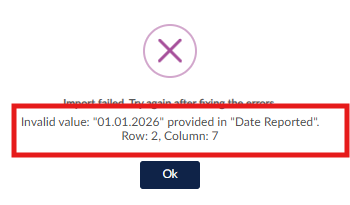
When an import fails due to an invalid value, review the error message carefully. The message typically identifies the issue and includes the affected field and row number.
Example:
*“Invalid Value: ******** provided. Row ***.”
This message indicates exactly which field and row in the import file require review.
Step 2: Review the Import File
Once you have identified the field and row referenced in the error:
-
Locate the specified field in the import file
-
Verify the following:
-
Correct formatting
-
Allowed and required values
-
Dropdown value matches
-
Spelling and letter case
-
-
Ensure the import template structure has not been modified
Step 3: Review the Environment
Confirm that the file aligns with the correct environment configuration:
-
-
Verify you are using the correct environment
-
Ensure all dropdown values, assessment types, and custom fields exist in the platform
-
Confirm that the values in the file exactly match those configured in the platform
-
Example 1: Invalid Date Format
In this example, the error above indicates an invalid value in Row 2, Column 7.
Upon reviewing the Excel import file, the date was entered as 01.01.2026:

The correct format should use forward slashes 01/01/2026, which will then display as Jan 01, 2026 when using the correct format of Custom mmm dd, yyyy :

Example 2: Invalid Custom Field Value
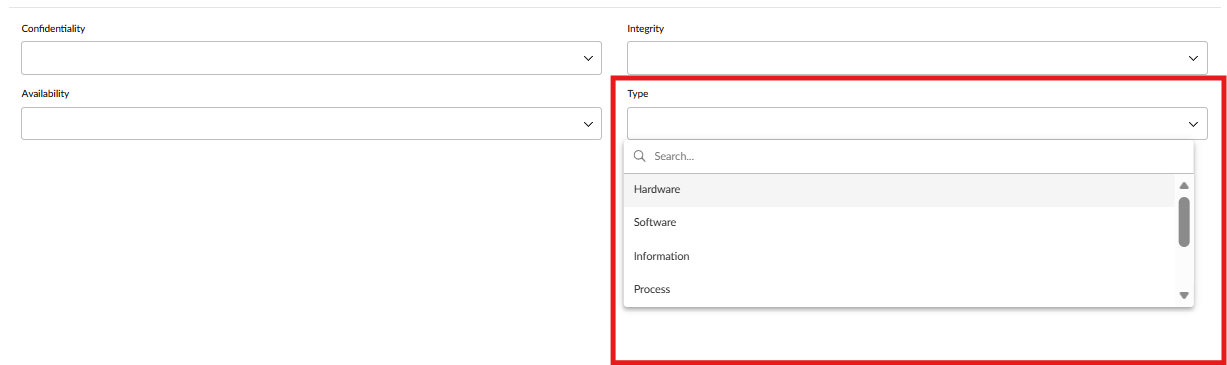
In this example, the import template was downloaded from a register that contains custom fields and predefined values.
Predefined custom fields and values:
After the data was entered into the template and uploaded, the following error message was returned:
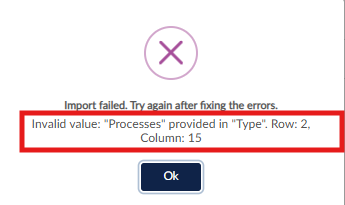
Upon reviewing the Excel document, the value “Processes” was entered instead of the correct value “Process”.

Root Cause
The import failed because the custom field value entered in the file did not exactly match one of the values configured in the platform.
Resolution
All values entered in an import file must match the configured field values in the platform exactly, including spelling.
Troubleshooting Steps
1. Verify the Template
-
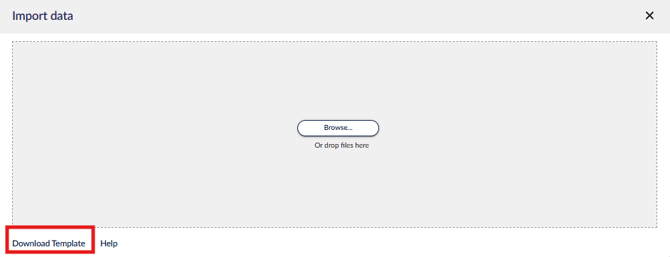
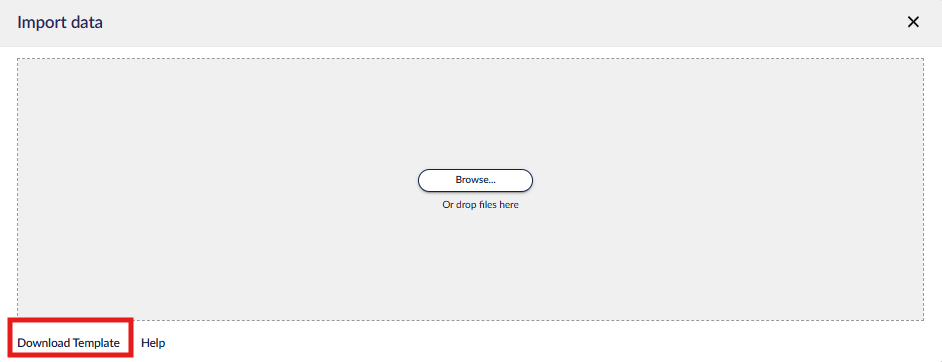
Ensure the file being used is the correct import template for the environment you are uploading to. Templates can vary by tenant and by type of import. Import templates can be downloaded by selecting the Download Template option. This will ensure all custom data fields are present in the import template.
2. Check Field Headings
-
Confirm that every column heading exactly matches the field configuration.
-
Look for:
-
Extra spaces
-
Misspellings
-
Additional characters
-
Fields not present in the environment
-
3. Validate Mandatory Fields
-
Ensure all required fields are completed and appropriately formatted.
4. Confirm Dropdown Values
-
Check that all dropdown or controlled values match those configured in the environment.
5. Ensure IDs Are Included (When Updating)
-
If performing an update, verify that IDs are present and correctly mapped.
Testing Steps
1. Download a Fresh Template
-
Always download the import template directly from the environment you intend to upload into.
2. Copy Values Only
-
Copy values only (not formatting) into the fresh template to eliminate hidden formatting issues.
3. Test With a Small File
-
Upload a reduced or sample file to confirm the import process.
Prevention & Best Practices
1. Always Use Environment-Specific Templates
Templates are dynamically tied to configuration. A template from another environment may contain fields that do not exist or may be named differently.
2. Maintain Template Discipline
-
Avoid modifying headings or structure.
-
Avoid adding, deleting, or renaming fields manually.
3. Validate Data Before Upload
-
Check for trailing spaces, inconsistent spelling, and formatting issues.
4. Keep Dropdown Values Current
-
Confirm available values in the system before populating the import file.
5. Document Changes in Configuration
-
When configuration changes occur (e.g., renamed fields, new dropdown values), communicate these to stakeholders who maintain import processes.
Summary & Key Takeaways
-
Most errors stem from mismatched structure, formatting issues, or configuration inconsistencies.
-
Troubleshoot methodically by checking templates, formatting, required fields, and configuration alignment.
-
Prevention is straightforward when templates are used correctly, and data is validated before import.
-
Consistent best practices significantly reduce import failures and rework.
Useful links
Several modules within the platform support import functionality. We recommend reviewing the relevant Knowledge Base articles and following the module-specific import steps carefully, as mandatory fields and requirements may vary by module. Please find some useful links below for detailed guidance on importing items.
Importing issues, incidents, and tasks into the Issues & Incidents Registers
Importing risk treatment plans into the Risk Registers
Importing risk assessments into the Risk Registers
Bulk updating risks in the Risk Registers
Importing controls and responsibilities
Bulk import third-parties/vendors