This article is about using the tests register which has already been set up by an administrator. Head here if you are an administrator looking to initially configure the tests register.
Table of contents
- Getting started
- Register tab
- Insights tab
- Viewer tab
- Test overview
- Comments & attachments
- Creating and linking data
- Completing a test log
Getting started
If you are assigned as an owner to a test in the tests register, you may receive an email notification that looks similar to the below.
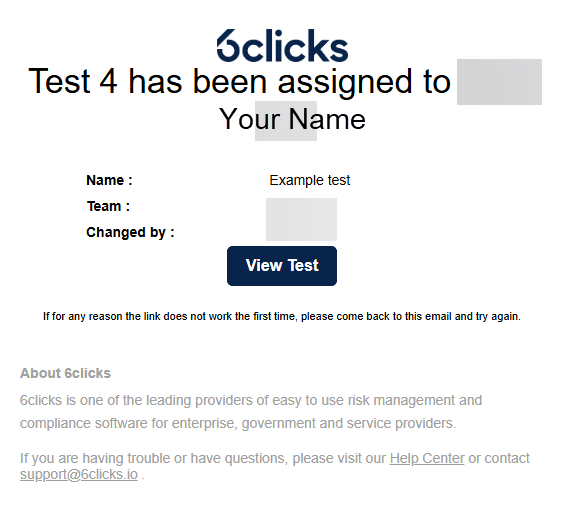
Click on the link to login and view the test.
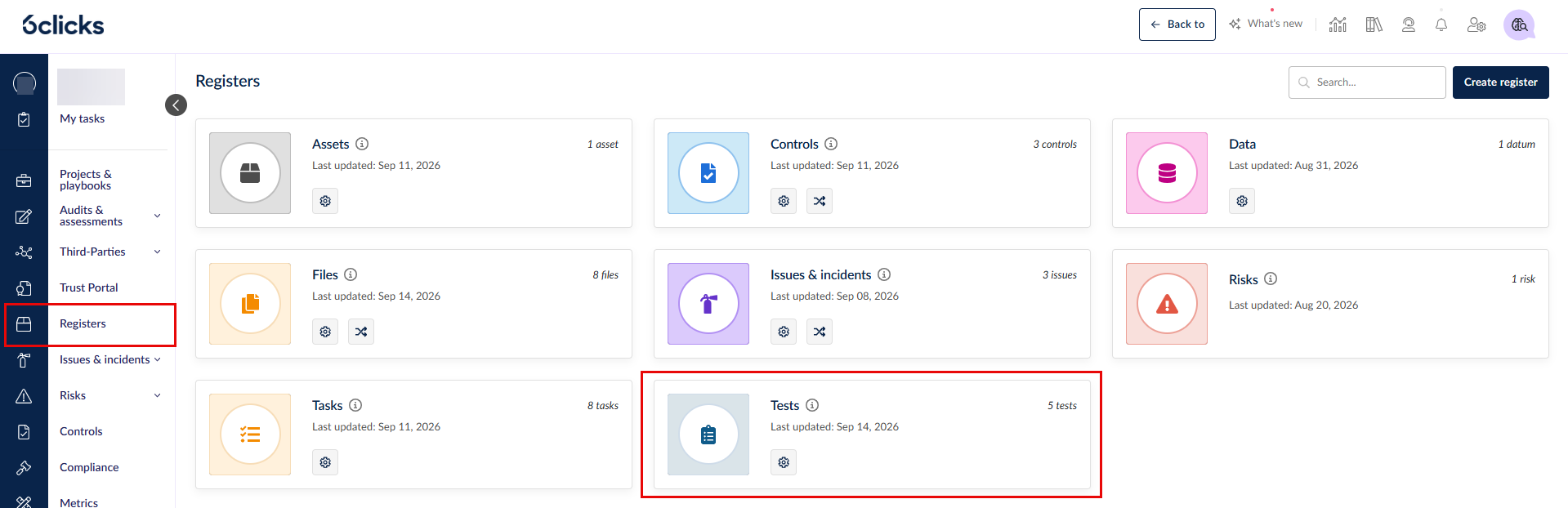
Alternatively, you can find all the tests visible to you by logging in and going to Registers > Tests.
Register tab
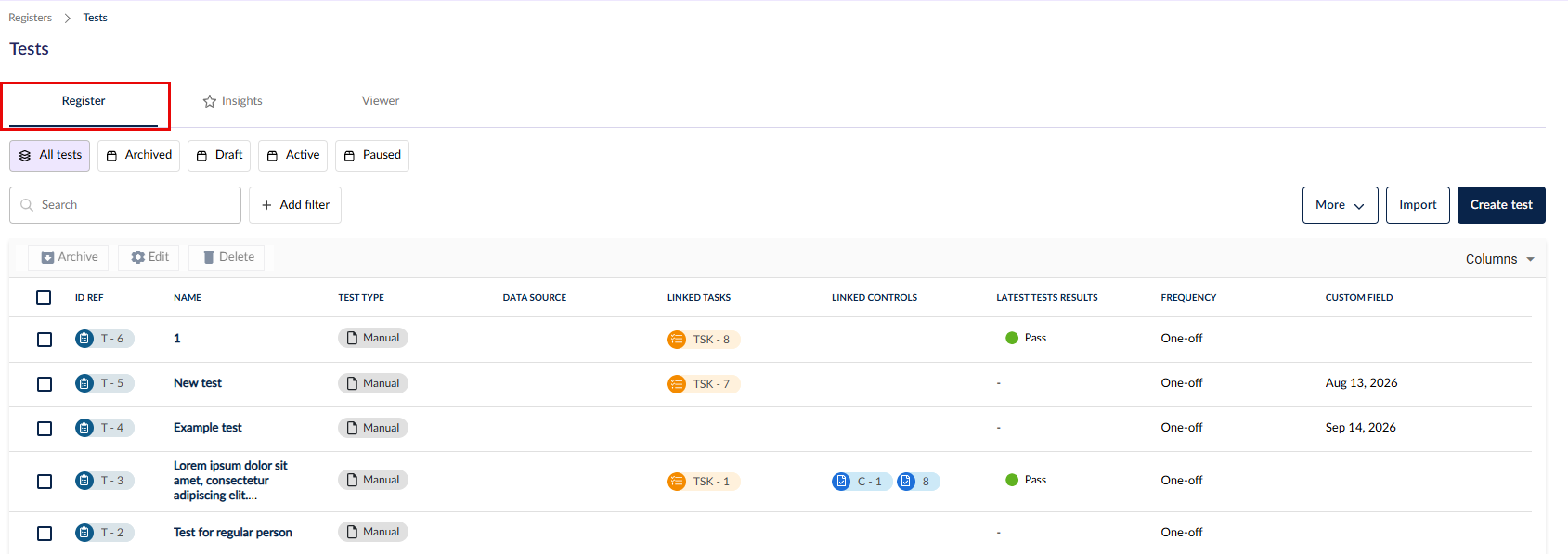
You can find all tests assigned or visible to you in the register tab. Head here to learn more about the filtering functionalities.
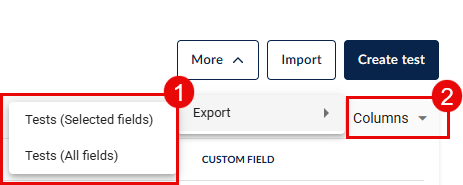
There are 2 ways to export the register records (1), one is to export all columns (including those not displayed in your register tab view) and the other is to export only the columns selected. To edit the selected columns, click on Columns (2).
You can perform bulk actions on your tests such as Archive, Edit, & Delete. Archived items are read-only and can be restored.
Insights tab
Under construction.
Viewer tab
Under construction.
Test overview
When you click on a test in the register, you will be taken to the Overview tab.
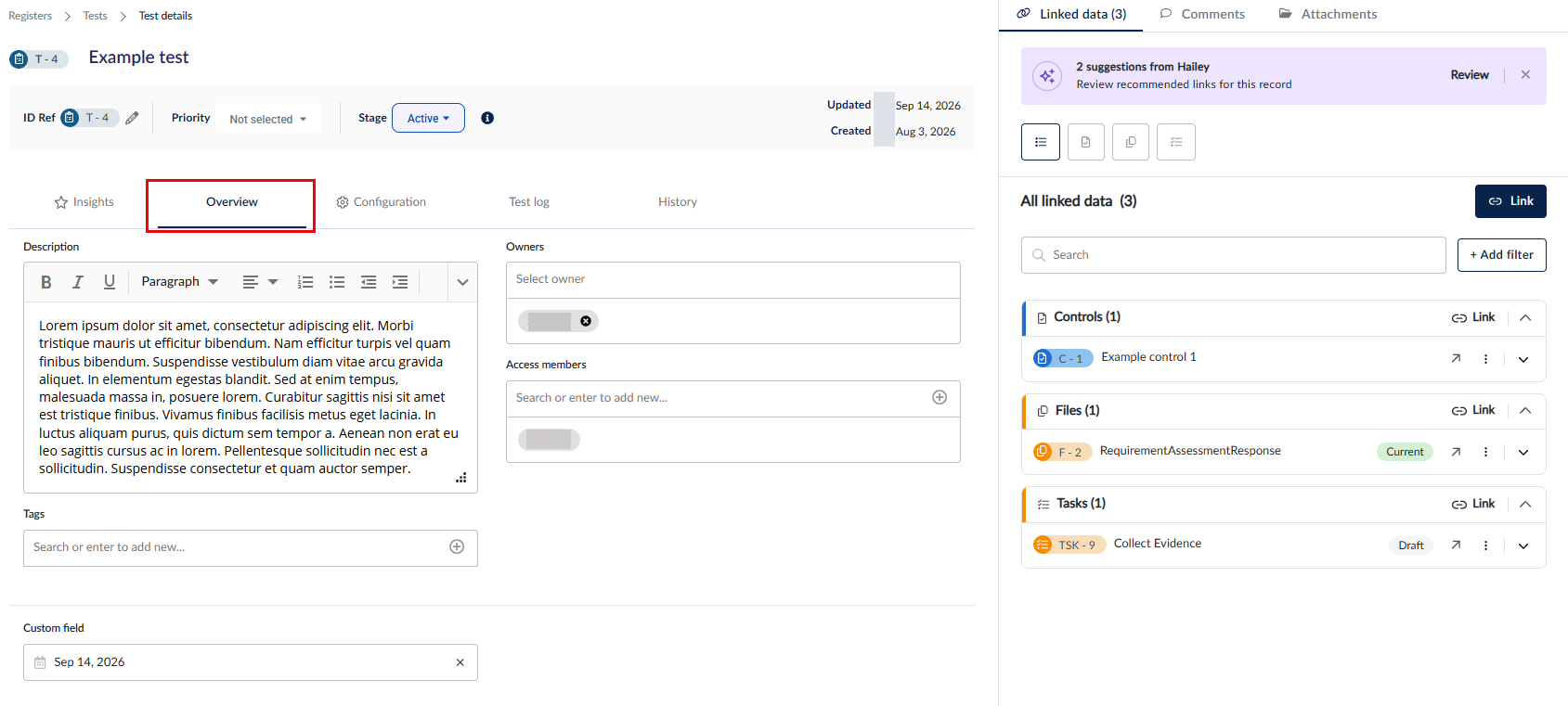
Here, you can manage your test's description, tags, and other details.
Comments & attachments
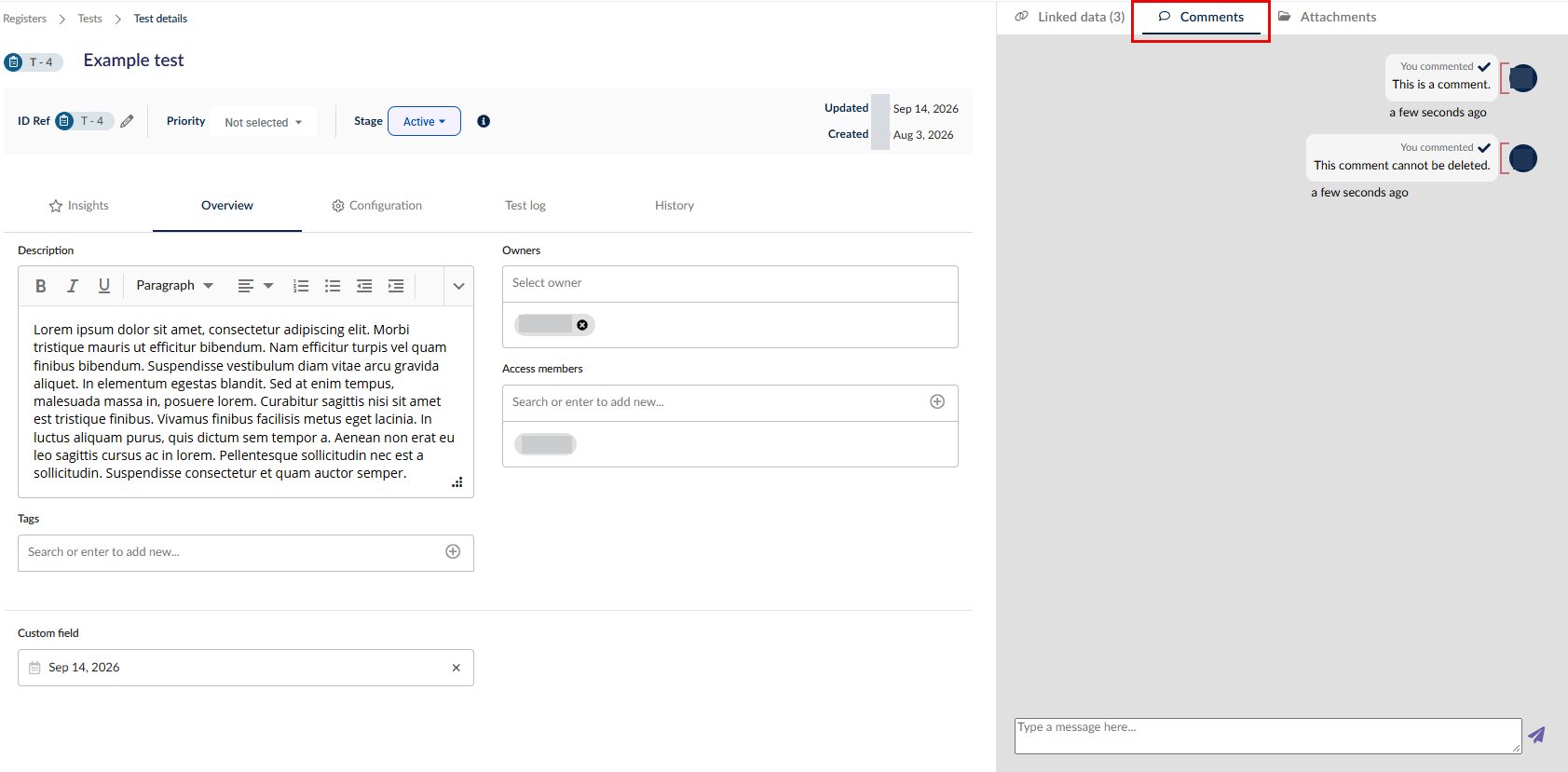
Use the Comments tab in the side panel to leave notes for other owners or access members of this test. A comment includes the timestamp and user name, and is not editable for audit purposes.
Use the Attachments tab in the side panel to add files related to this test.
This is a generic way to link a file to a test. For adding files as evidence for the test to prove the control effectiveness, head here.
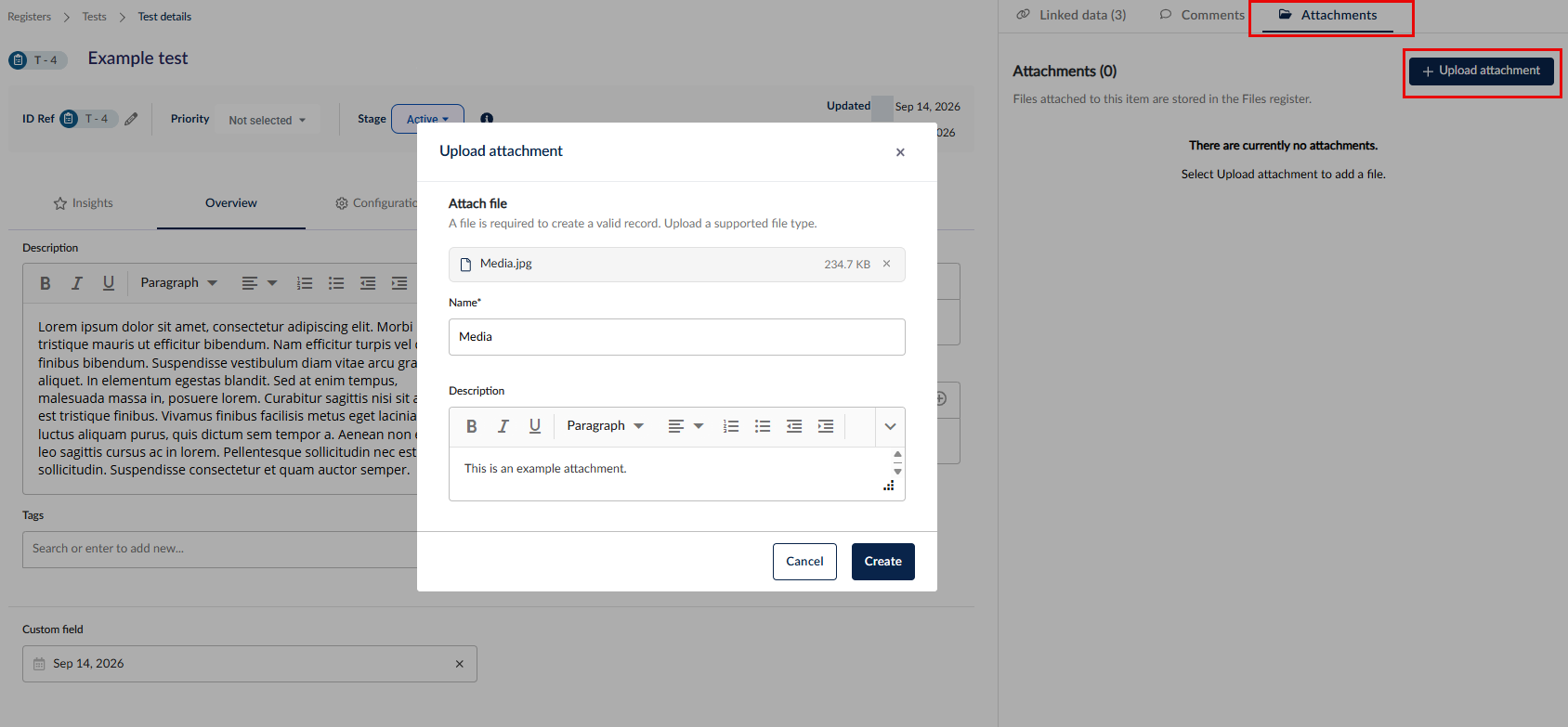
The files will be added to the files register where you can add further details if you have relevant permissions. To head to the files register and access the file record, click on the arrow.
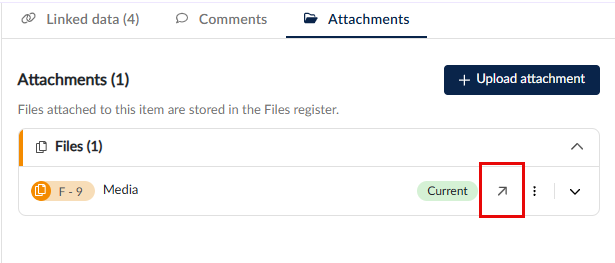
Without permissions to the files register, you can still add attachments to the test, but you won't be able to add further details to these files in the register.
Creating and linking data
The scope of your test may expand overtime to cover different registers or areas of your organization. Every record linked to a test is part of its scope, and each test log generated under a test captures the scope of that test at that point in time.
To update the scope for future logs generated under a test, you can link and unlink other items to the test anytime.
In the Linked data side panel, you can filter by different data types (1), edit the linkages (2), and view, unlink or expand details of linked items from the registers and modules that you have permissions for.
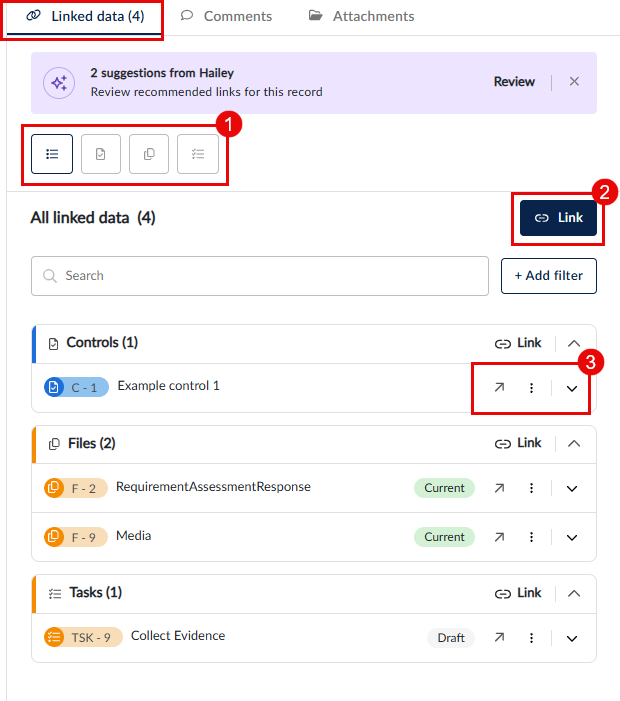
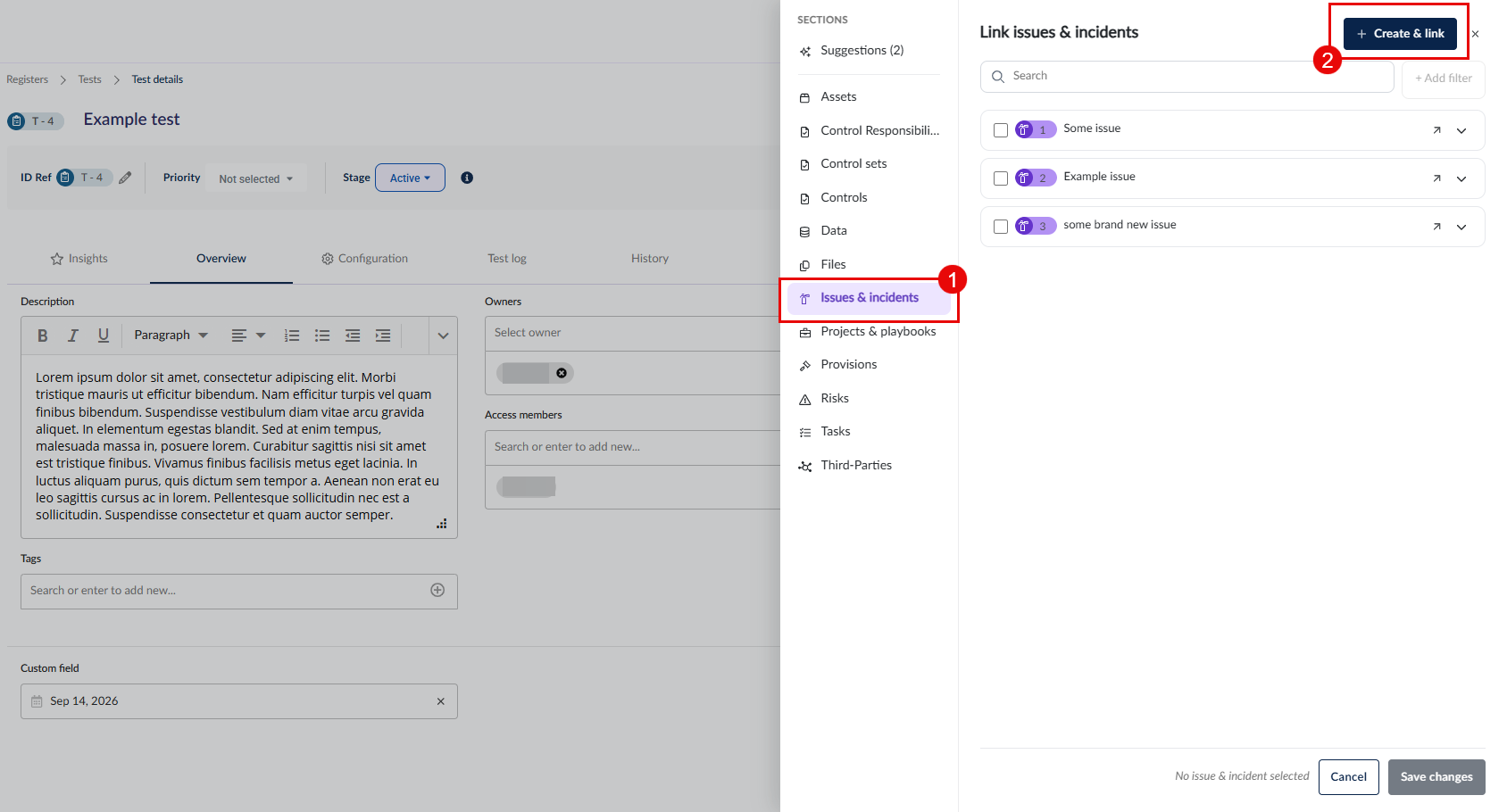
To link existing items, click on the link button. To create and link a new item, select the register you want to create the item in on the left (1) and then click Create & link (2). Once created with a name and description, the item will be automatically linked to this test.
Head here to learn more about linking tests to controls.
Completing a test log
The first test log is ready for evidence collection when:
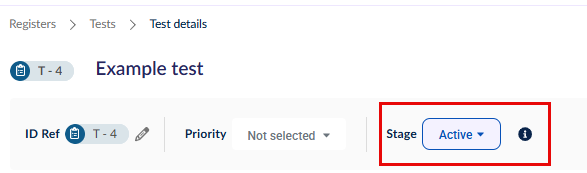
- The test's Stage is set to Active,
- The test is linked to a control, and
- The test is linked to a task with the type 'Evidence validation'.
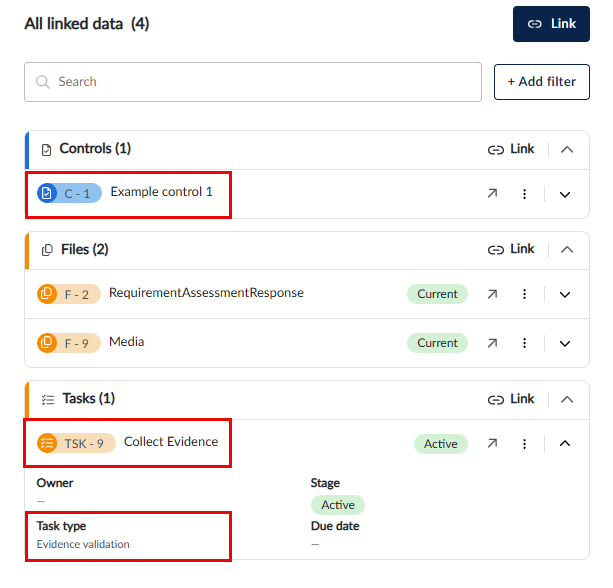
For the end to end workflow of evidence collection & validation using tests and tasks, head here. The rest of this article focuses on the different areas of test logs specifically.
Manual test logs are created with the status 'Not started'. Once a test log's status is set to Ready for evidence collection, you will be able to set up the test log for collecting and validating evidence.
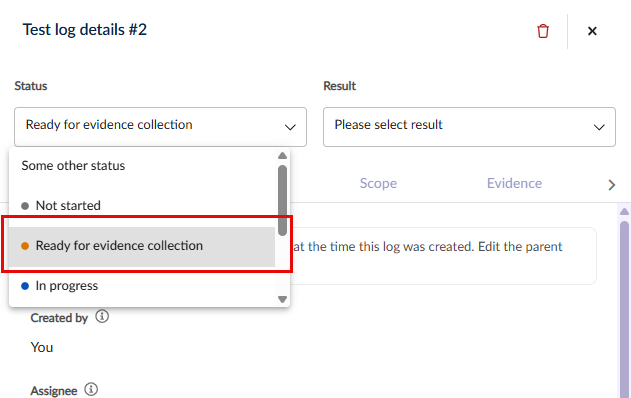
Each tab of the evidence collection process under the test log is detailed below.
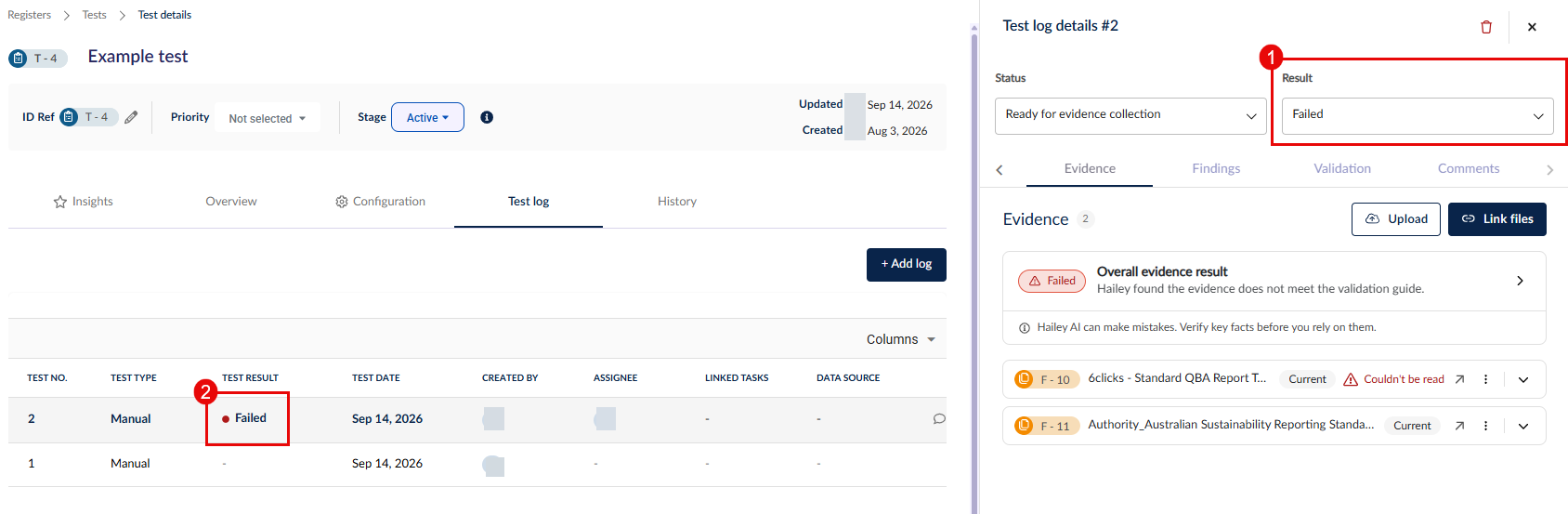
After evidence is submitted and validated manually or with Hailey, you can mark this test as Pass, Fail, and Partial. The latest test result will be visible in the test log as well as in the main register.
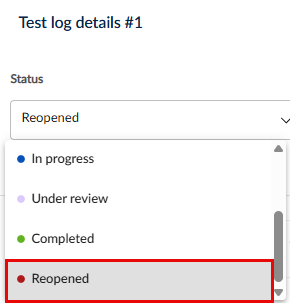
When the assignee completes an evidence validation task log, they can mark it as completed. This notifies the linked test owner as well as automatically changes the status of the log from In progress to Under review.
If you review the linked evidence and find it unsatisfactory, you can reopen the test log. The task assignee will be notified and the task will reappear in their My Tasks. The task assignee can simply change the status of their task from Reopened back to In progress and add better evidence.
Overview
The overview includes the below fields. The fields with asterisks (*) are read-only and set at the test level in either the overview or configuration tab.
- Created by*
- Assignee - the user assigned to complete the validation of this test result will also be assigned to the linked evidence validation task.
- Test name*
- Description*
- Test date
- Due date
- Test type*
- Frequency*
- Validation guide*
Scope
This is a read-only view of records linked to the test at the time when this test log was generated, such as the controls, tasks and other register items which this test is related to. The scope of the test informs Hailey's evidence validation as well.
Comments
The comments under a test log's detail is connected to its evidence collection task. Users can mention each other as well as any files from the files register in the comments tab to communicate regarding their work on the test/task.
Evidence
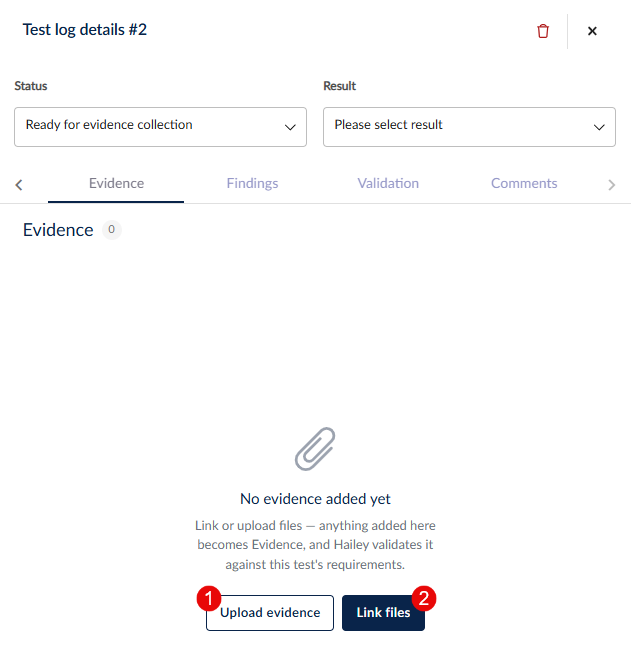
You can either upload a new file as evidence (1) or link a record from the files register to this test i.e. reusing an existing file as evidence (2).
If automatic evidence validation is enabled in the test's configuration tab, Hailey will help you validate the submitted evidence in the validation tab. If it's not enabled, you can still ask Hailey to validate the evidence, but it won't do so automatically.
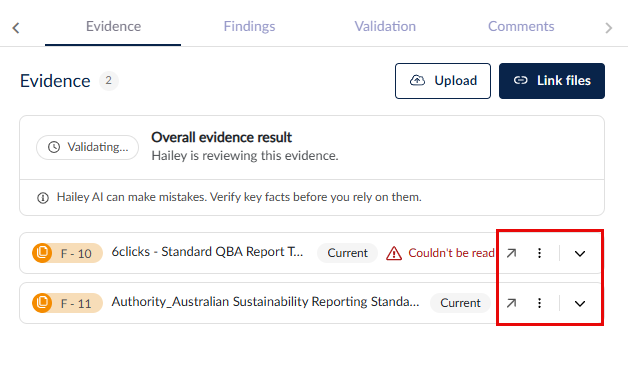
You can check on the evidence submitted against this test log in the files register, expand it to see more details, or unlink it from this test log. If you unlink a file from the test log, it still exists in the files register in case you change your mind.
To learn more about how Hailey validates evidence, head here.
Findings
During or after evidence submission and validation, you may come across gaps or other findings in relation to this test. You can create or link register items such as issues to address.
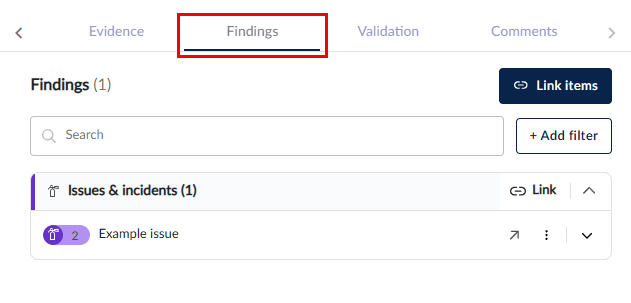
Provisions and tests cannot be linked to a test log as a finding.
Validation
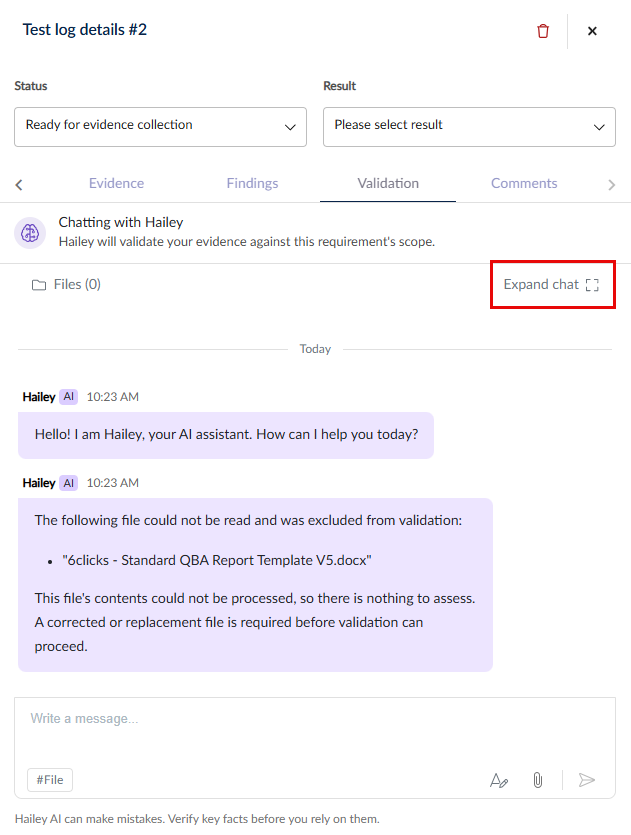
You can ask Hailey to validate all the evidence submitted so far against this test log using the test's scope, validation guide, and linked data as context. This way, Hailey tries to combine all the evidence to ensure best fit against your passing criteria.
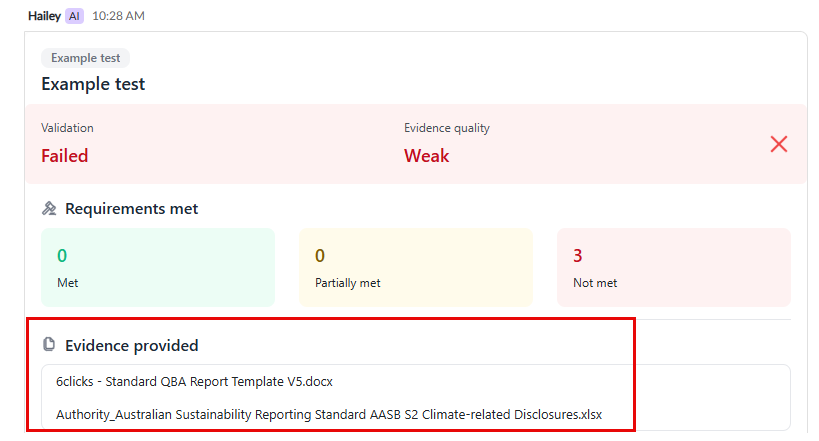
You can pop the chat open into a larger window.
To learn more about how Hailey validates evidence, head here.
Response
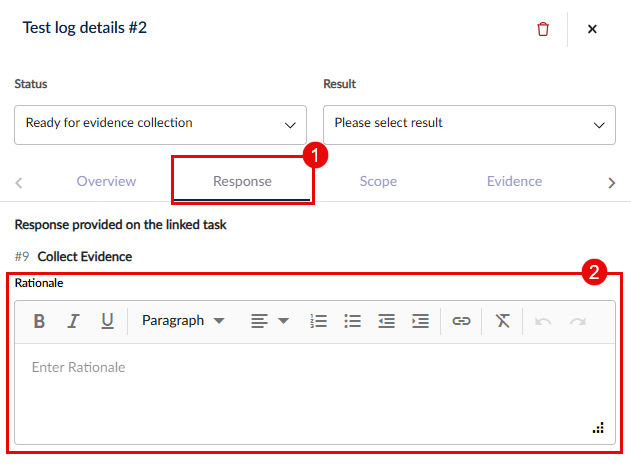
The response (1) under a test log's detail connected to its evidence collection task, as the test owner you can view it here without heading over to the task.
By default, a Rationale (2) field is provided however other custom fields can be added by your administrator if needed.
Test history
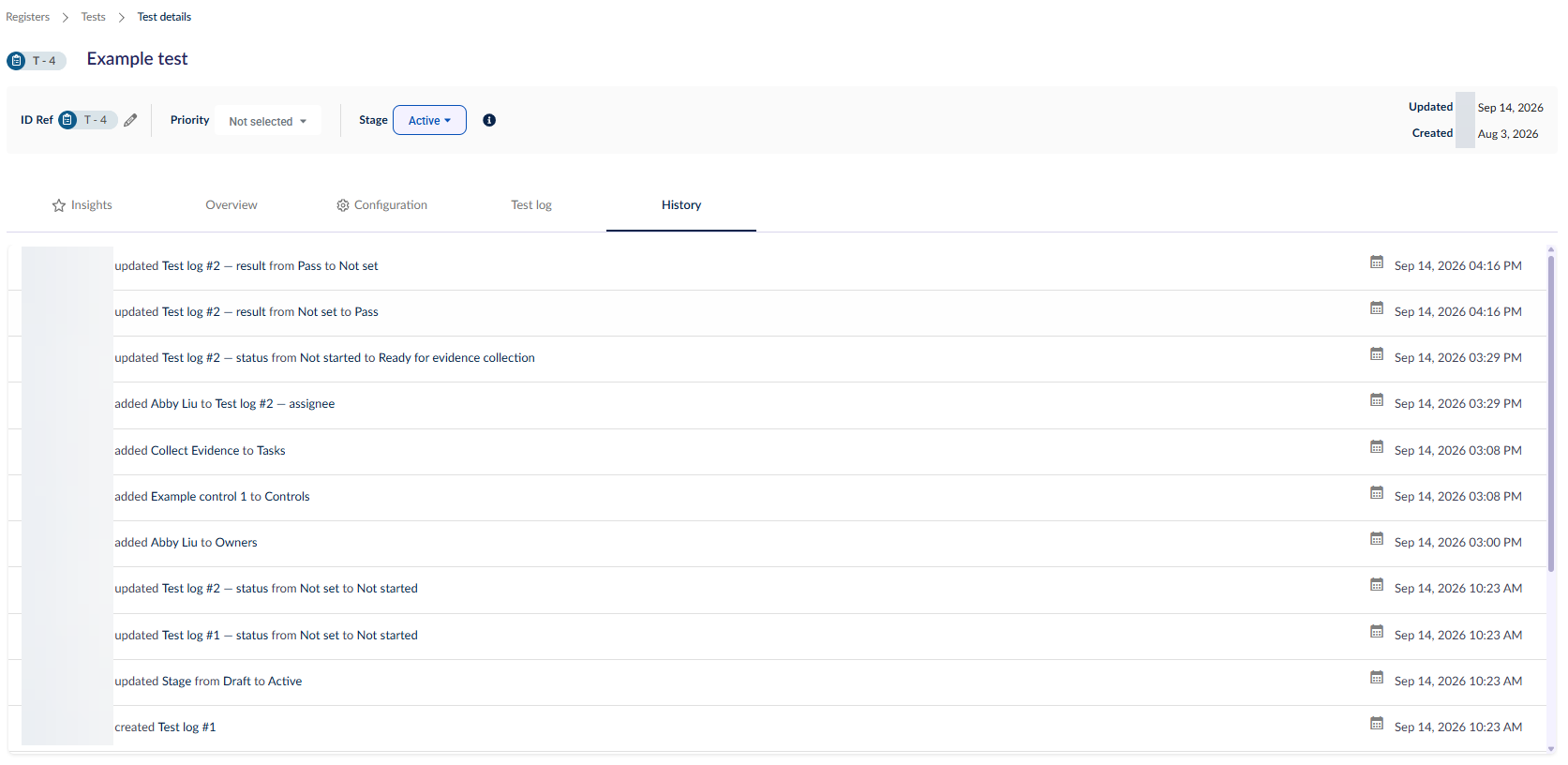
The history tab provides a full trail of the actions taken in relation to the test for audit.