The controls, tests, tasks and files registers work together if configured correctly. They can pass a file as a piece of evidence via a task, to a test, which if passed, ensures that the control is effective. Throughout the process, you can ask Hailey AI to validate the evidence against the control test's passing criteria.
Table of contents
- Prerequisites
- Setting up
- Control
- Test
- Task
- Automatic task creation
- Linking data
- Control
- Test
- Task
- How it works
- Example
- Permissions
Prerequisites
This workflow is only applicable to manual tests, which means it does not work for integrations which perform continuous control monitoring (CCM).
This workflow needs to take place across multiple registers; therefore, any users who should be expected to use it needs to be granted relevant permissions across the controls, tests, tasks and files registers. Reducing a user's permissions across these registers may mean that they cannot oversee the workflow.
Setting up
Control
Head here for step-by-step details on how to create a control in the controls register.
If you are using Hailey AI in this workflow, add as much detail as possible to the control to ensure that Hailey can successfully and accurately validate evidence against a test for this control. Hailey takes the control's description as well as linked data into consideration as scope and context.
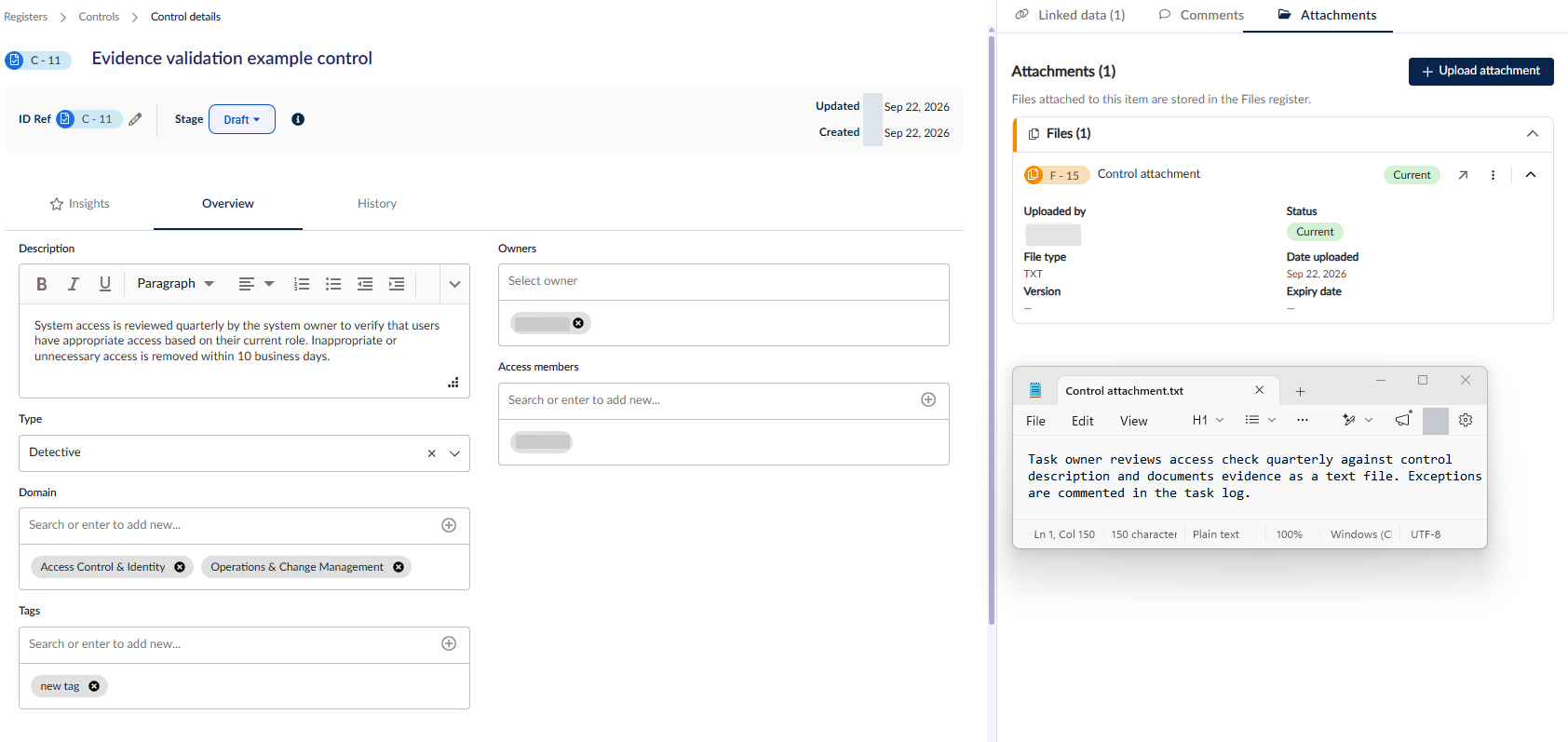
This is our example control.
Test
Head here for step-by-step details on how to create a test in the tests register.
If you are using Hailey AI in this workflow, add as much detail as possible to the test to ensure that Hailey can successfully and accurately validate evidence against this test. Hailey takes the test's description, linked data, validation guide as well as its supporting files under the configuration tab into consideration as scope and context.
Ensure that the test's schedule and assignees are defined clearly. Ensure that you have configured whether to have Hailey manage the test's validation guide or manually manage it in the Configuration tab.
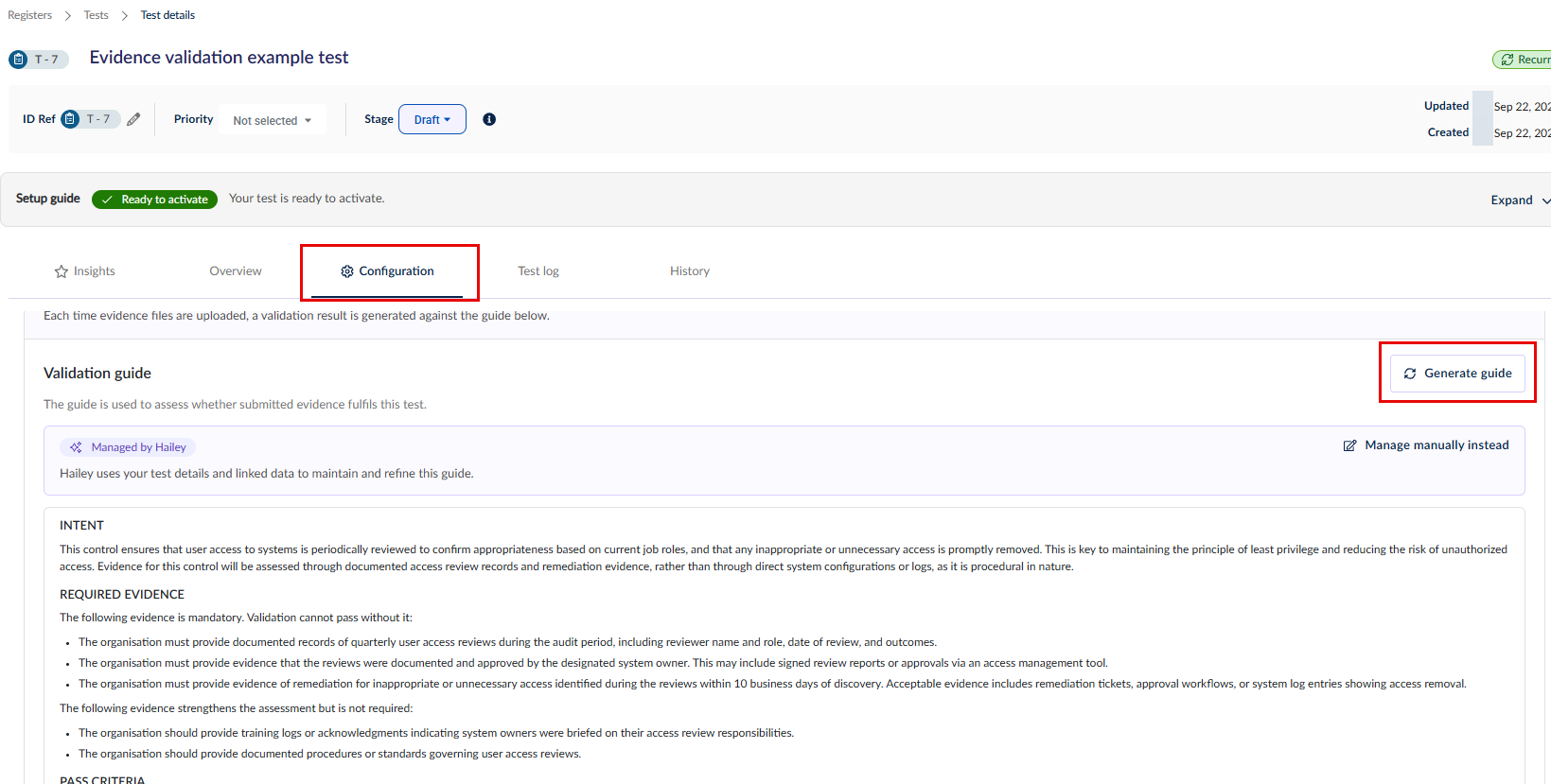
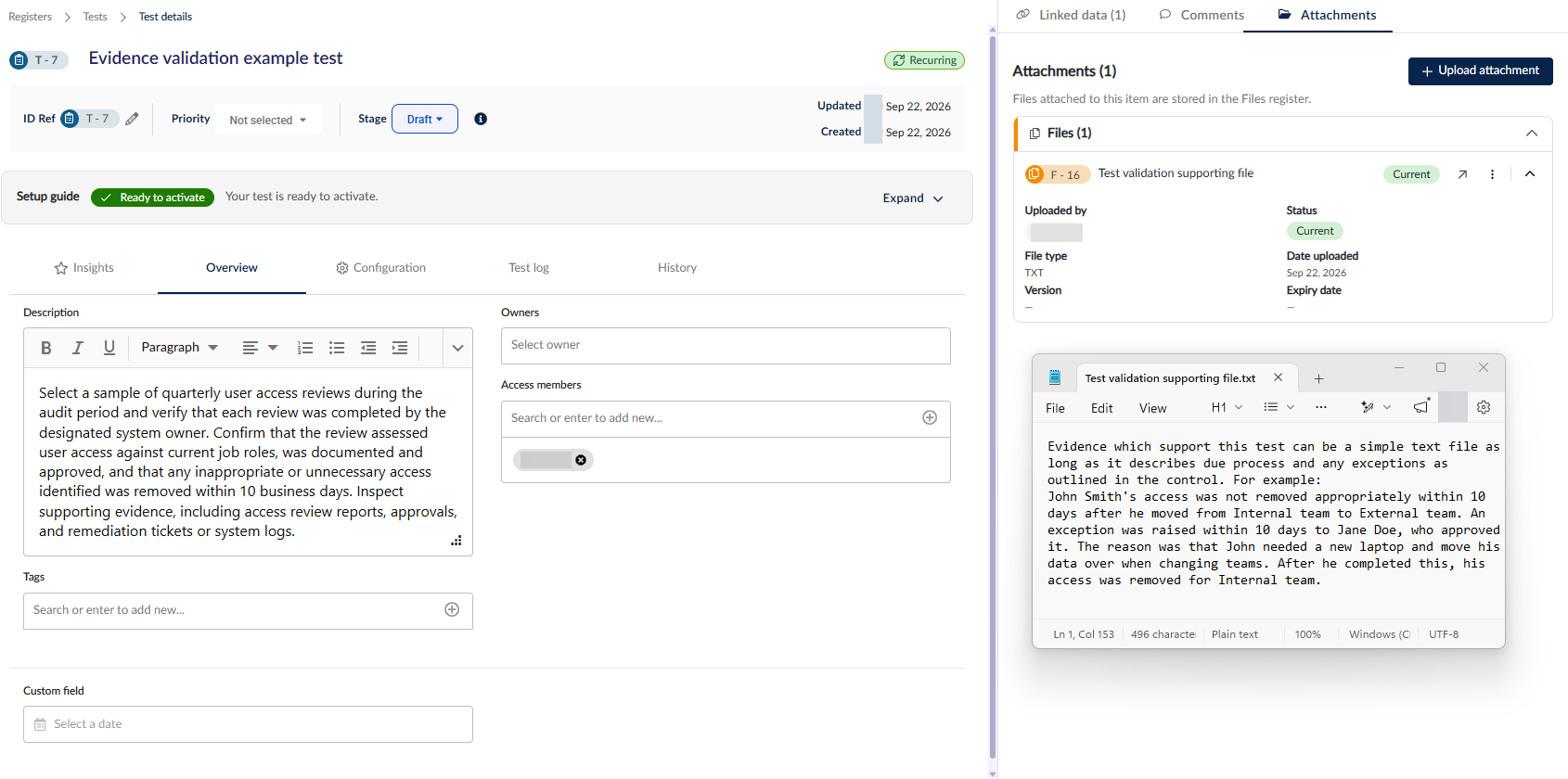
This is our example test.
Task
Head here for step-by-step details on how to create a task in the tasks register.
-
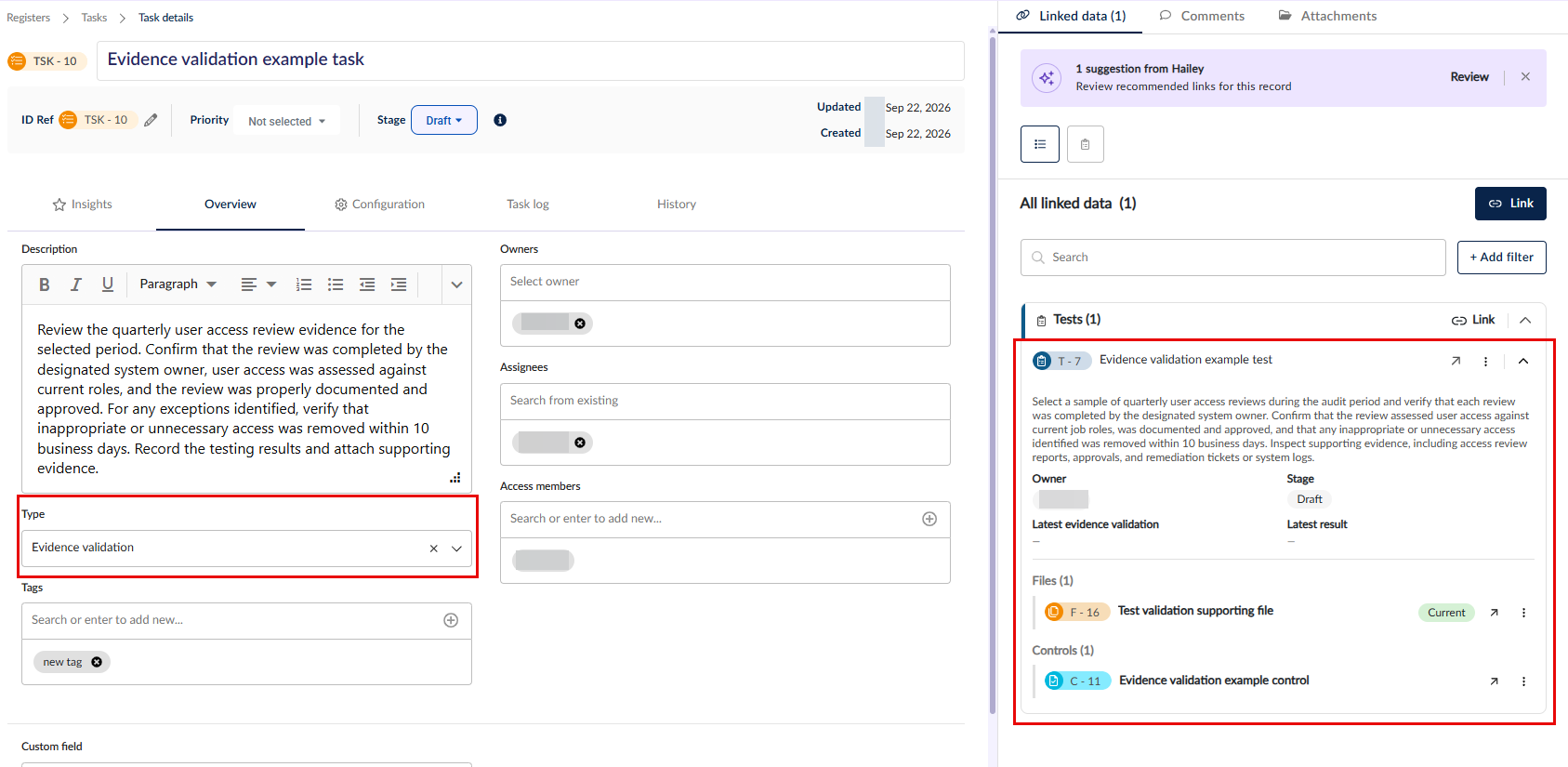
The task has to be of the type 'evidence validation'.
-
If repeating, the task log's frequency will be overridden by the test's frequency settings.
This is our example task.
Automatic task creation
Ensure that no existing task register item of type ‘Evidence validation’ is linked to the test for automatic task creation to take place.
Alternatively, if the test is set up correctly, a task will be created and linked for you according to the workflow if it does not yet exist.
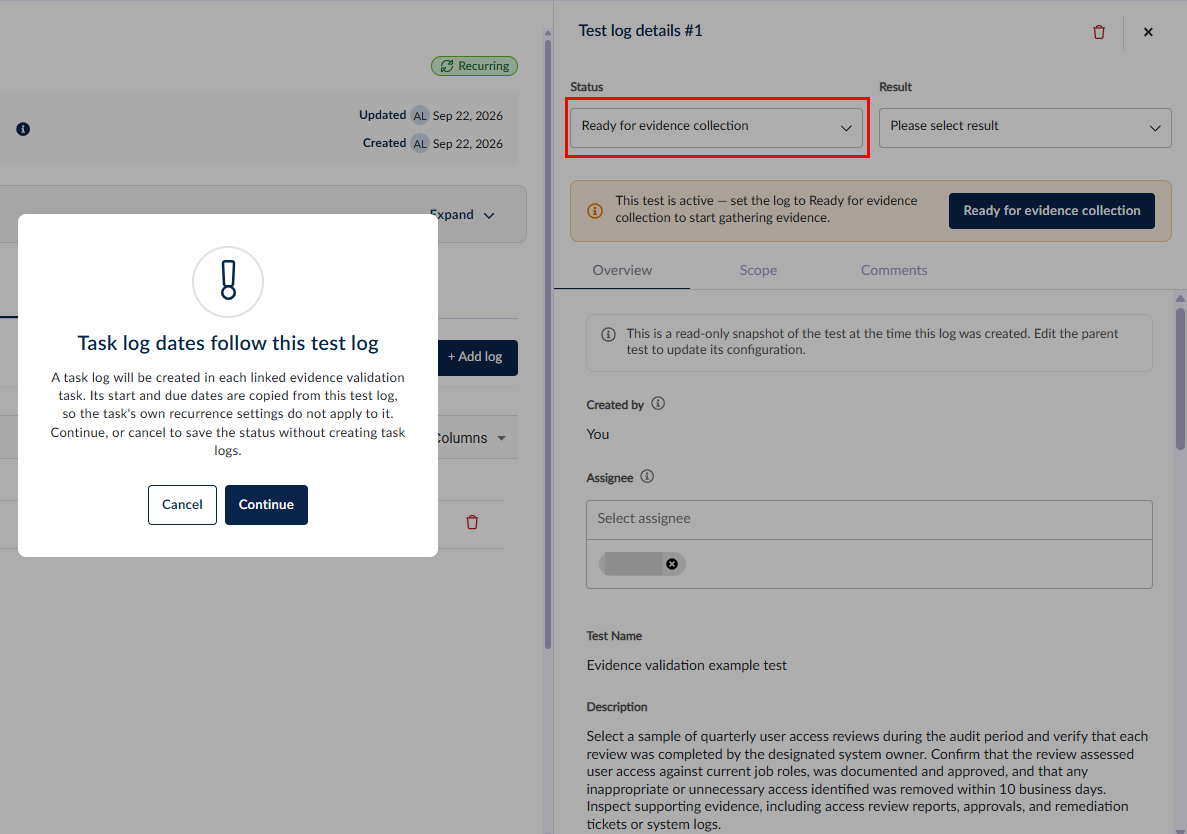
Once the setup is done, and your test has a robust validation guide, activate the test. This will create the initial test log (or the only test log depending on your recurrence setting) When you switch the status of the test log from ‘Not started’ to ‘Ready for evidence collection’, it triggers a background process that will create the associated task to the test.
The created task has a similar name to the test albeit prefixed with the word “Task: “ to differentiate the two items. Whatever the recurrence schedule is setup for the test gets copied over to the task. The setup start date, due date, repeat and frequency setting from the test all becomes available to the task. It will also activate the task and a task log will get immediately generated.
Linking data
Control
-
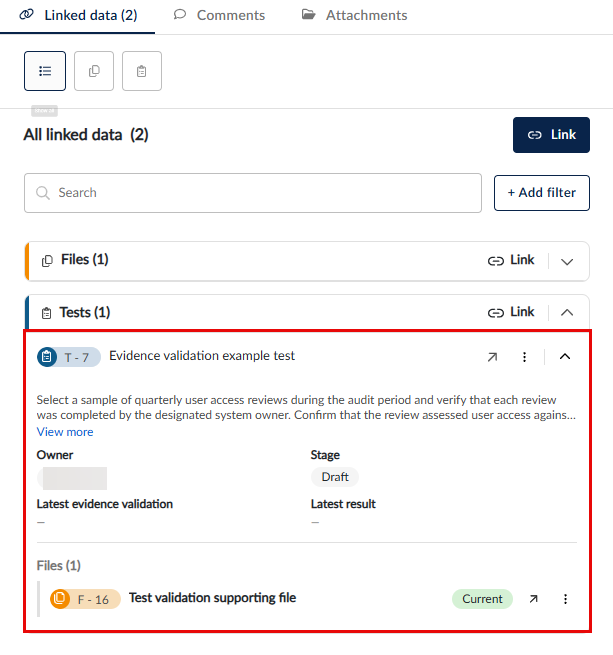
The control has to be linked to the test where the evidence will be submitted.
-
The control can be linked to other generic type tasks but they won't form part of this workflow.
-
The control can be linked to other items for scope or context.
This is our example control's linked data tab.
Test
-
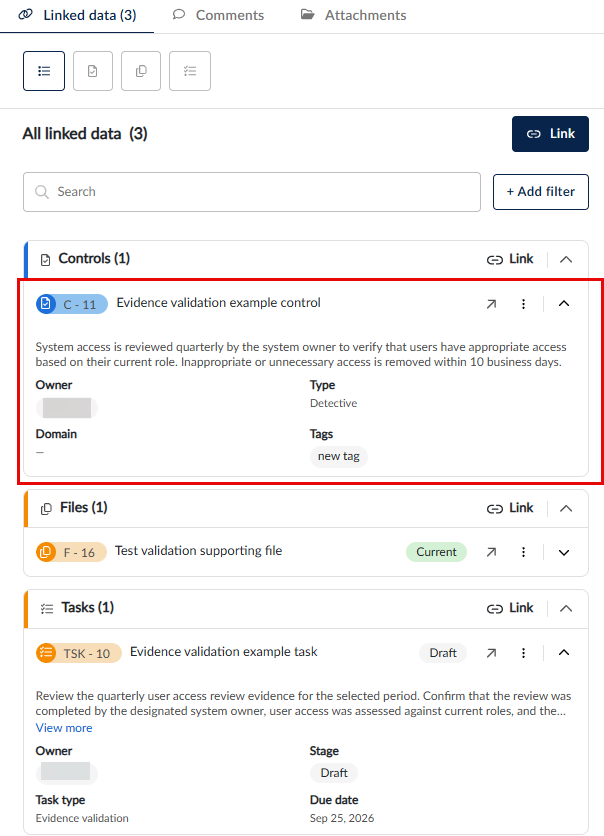
The test has to be linked to the control, and the 'evidence validation' type task.
-
The test can be linked to other generic type tasks but they won't form part of this workflow.
-
The test can be linked to other items for scope or context.
This is our example test's linked data tab.
Task
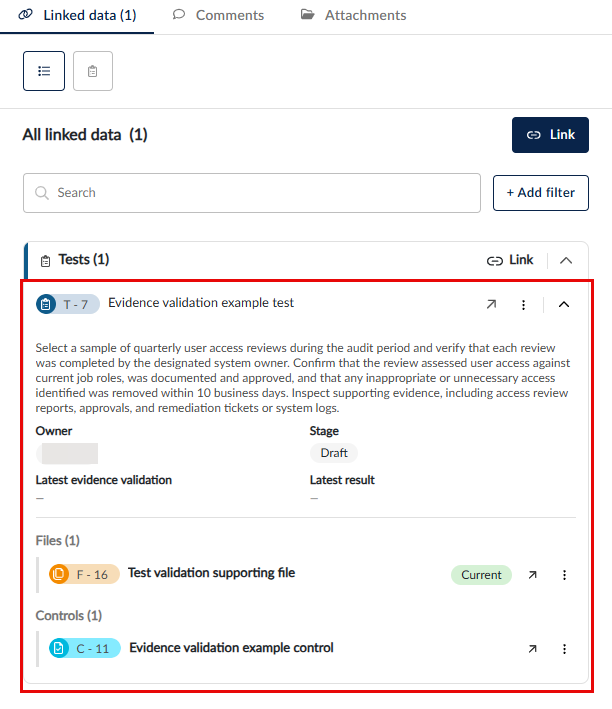
The task has to be linked to the test.
This is our example task's linked data tab.
How it works
The setup guide in the test provides a handy checklist that you can use to ensure all relevant information has been added.
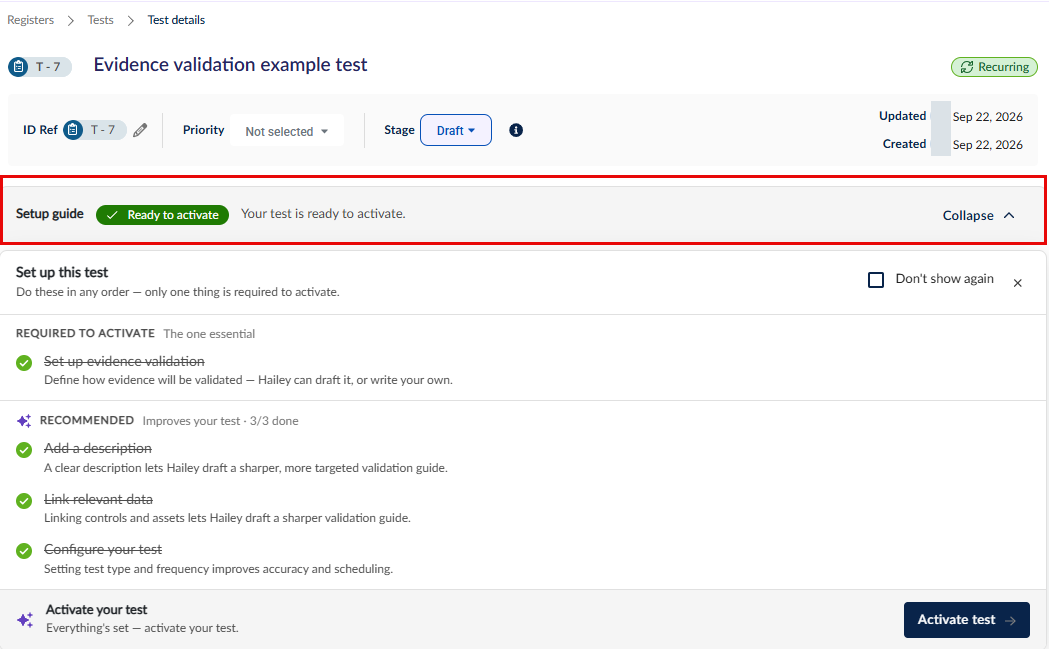
Set the test to active to generate the first test log. Future logs will generate automatically if repeating. You can create a new test log manually at anytime.
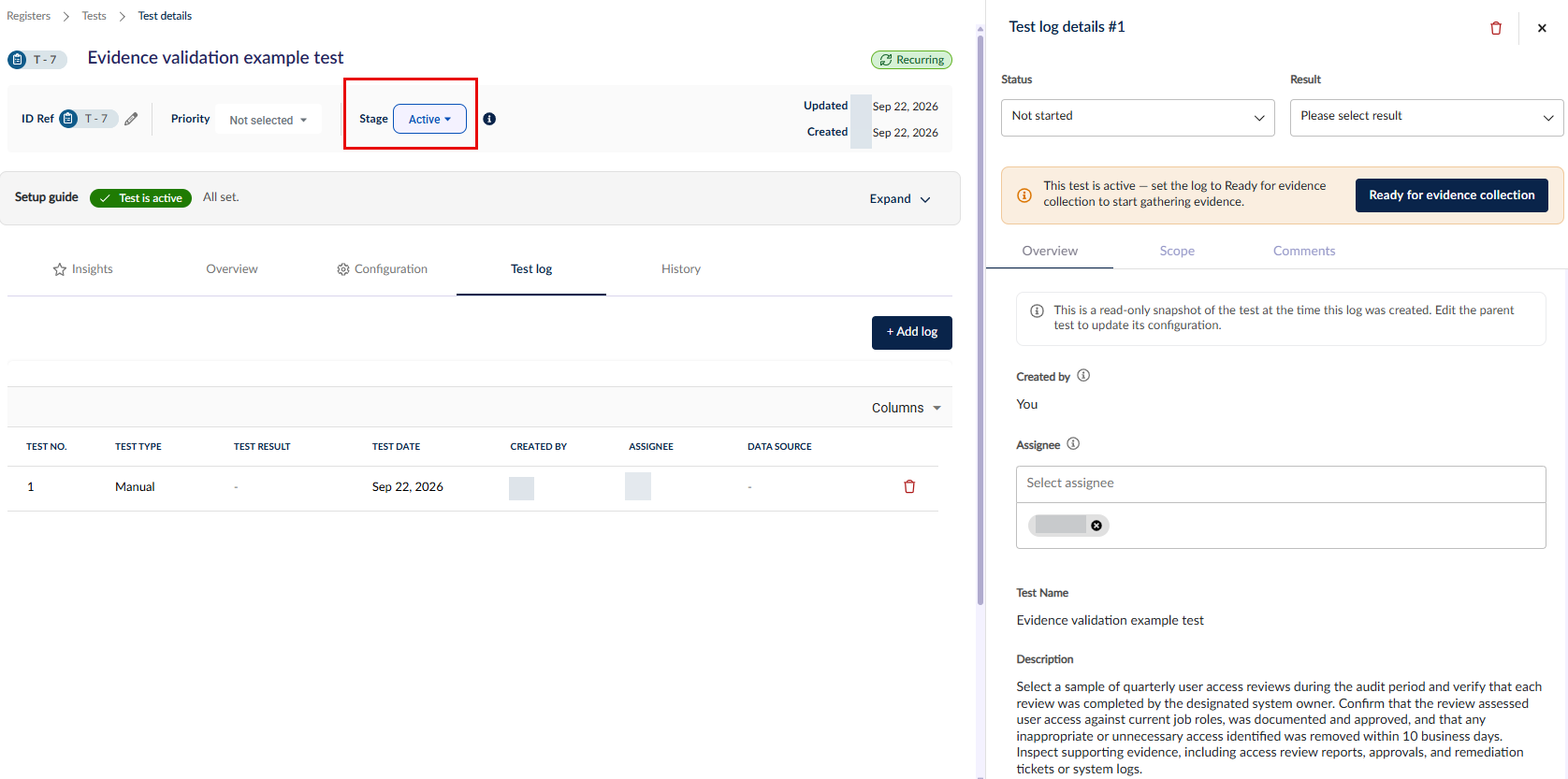
Set the test log to ready for evidence collection. The task will generate its first task log alongside the test log.
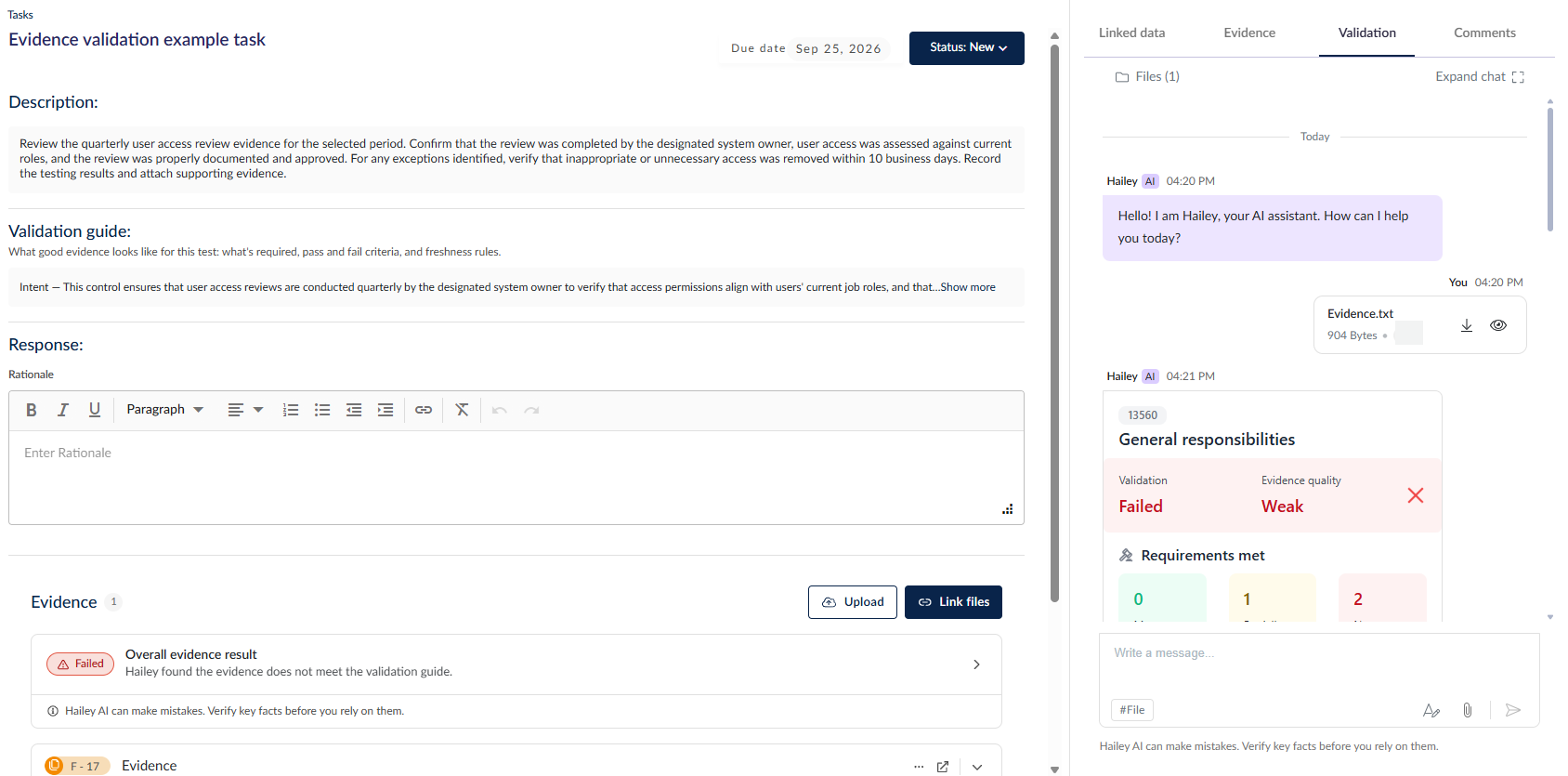
The task will need to be completed by the task assignee in their My Tasks.

The task assignee can validate the evidence they are looking to provide using Hailey AI, provide a response to any fields configured, and communicate with the task or test owners using the comments. When they're done, they can set the task status as Completed.
Example
- Test owner set the status of the test log from ‘Not started’ to ‘Ready for evidence collection’.
- Underlying task or task log will get created and will get assigned to the user/s defined in the Assignees field.
- The evidence submitter will receive an email notification. A notification will also appear on that user’s My Tasks page when they log into the platform.
- On My Tasks, the task logs have a starting status of ‘New’.
- Once the user starts the process of uploading the evidence, change the status of the task log from New to In Progress.
- What this does is it will also update the status of the test log from ‘Ready for evidence collection’ to ‘In Progress’
- This informs the test owner that the process of uploading the evidence is already underway.
- The user can choose to give more context on the file uploaded via the fields that are displayed under the Response tab.
- These fields are all customizable except for the Rationale field which is a mainstay of the Response tabs for all task and test logs.
- Once the evidence gets uploaded and validated, the evidence submitter changes the status from In Progress to Completed.
- This will transition the status of the test log from In Progress to Under review, again informing the test owner that the task has advanced and the evidence will now be reviewed by them.
- If the test owner agrees with the findings and finds the evidence to be sufficient, they can update the status of the test log to Completed and they can select the Result if it is a Pass, a Fail, or Partial.
- If the test owner deems that the evidence is inadequate, they can update the status of the test log back to In Progress or Ready for Evidence collection.
- This will tag the status of the task log in My Tasks for the evidence submitter back to In Progress.
- The evidence submitter will receive notification that they have been reassigned to the task and that they need to resubmit evidence.
- The test owner can use the Comment tab found in the test log or the Response tab to provide feedback on the evidence submitter on the quality of evidence submitted.
- Go back to step 5.
Permissions
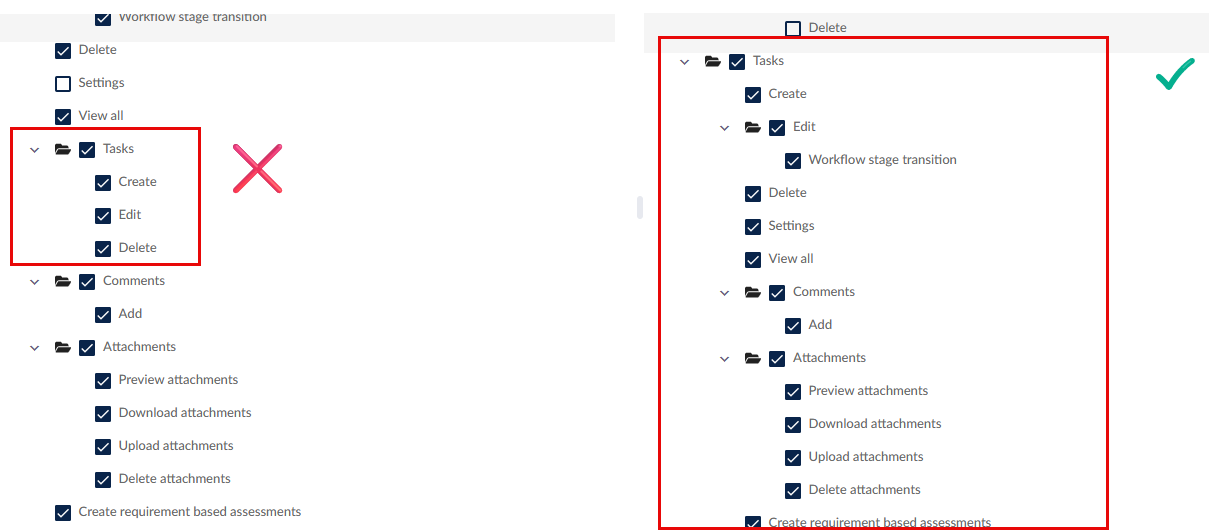
Users who need to participate in this workflow should have permissions to the Controls, Tests, Tasks, and Files registers.
The Tasks register permission folder is under General > Registers and looks identical to all other register permission folders, not to be confused with 'tasks' permission under the Issues & Incidents register or other custom registers.