
Key features
Search for and filter items based on their links to other records. For example, you can quickly find risks linked to a specific control. You can also filter using different types of linked data across registers and modules.
Benefits
Availability
- Issues and Incidents
- iGRC registers
- Custom registers
Filter options
The new filter and query builder replaces the previous filtering experience and introduces two ways to filter records.
Simple filters
Use simple filters to quickly narrow the records shown in a register. These filters work similarly to the existing register filters and are best for straightforward criteria.
Advanced filters and queries
Use the advanced filter and query builder to create more complex queries. You can:
- Create nested conditions and groups
- Combine criteria using AND or OR
- Filter records using data from linked relationships
Save filters as views
You can save a filtered register as a view so you can quickly return to commonly used filters without rebuilding the query each time.
Simple filters
Simple filters replace the existing filtering experience and add a basic is linked option for linked data.
To apply a simple filter:
1. Click + Add filter.
2. Select Details to view the fields available for filtering in the register. Depending on the field, you can choose options such as Empty, Is not empty, or enter specific values.
3. Select Linked data to view the related registers you can filter by.
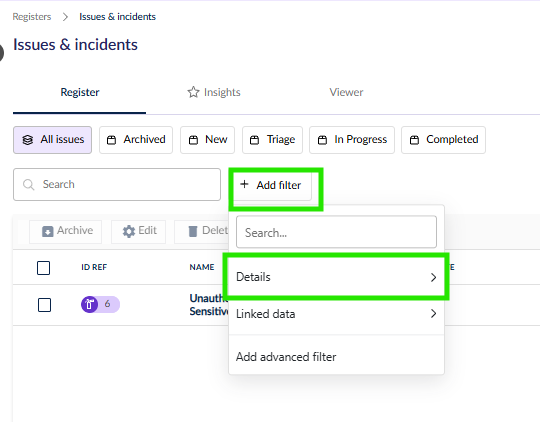
4. Click Apply at the bottom to apply the selected filter or filters.
If a filter has been added but not applied, it will appear with a dotted outline and an Apply button to indicate that it is pending. Once applied, the filter will appear with a solid border or background.
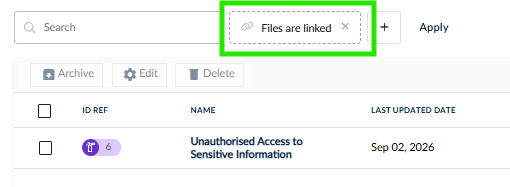
When the filter is applied, it’ll be shown with a solid border/background.
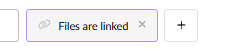
You can add more filters with the + button or edit the existing filters by clicking on them.

Advanced filters
Important: Before switching to the advanced filter, make a note of any simple filters you want to recreate.
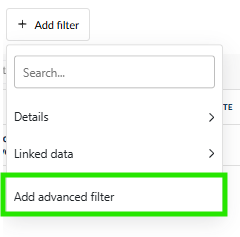
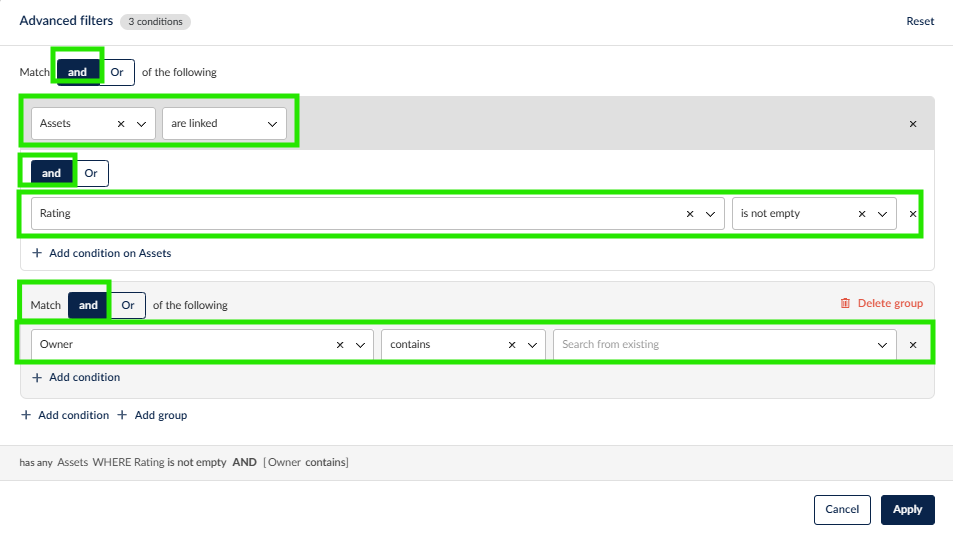
Match conditions
Important: A nested AND/OR setting applies only to the conditions within its group. It does not affect conditions outside the group.
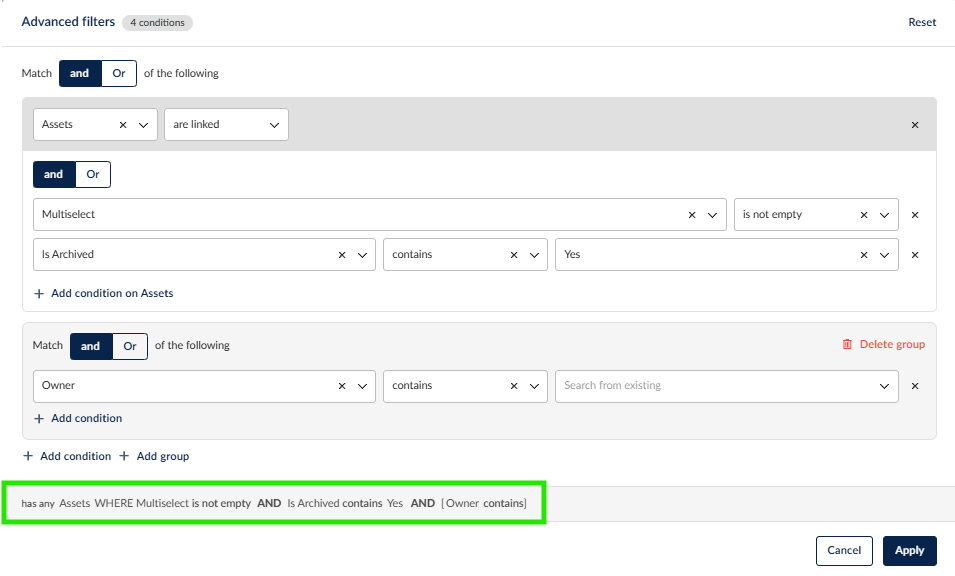
Query summary
The Query summary bar appears above the footer and displays your query in plain language. It is particularly helpful for understanding complex queries that contain grouped conditions or use a combination of AND and OR operators.
Saved Views
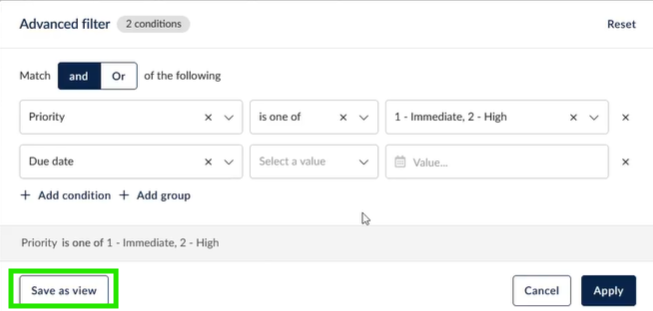
You can save an advanced filter configuration as a view by selecting Save as View.
A pop-up window will appear, allowing you to enter a name for the view. Once saved, the view will appear alongside your existing filters, making it easy to select and reuse.
You can also edit a saved view at any time and save your changes.
In the example below, the advanced filters are configured to filter issues based on the following criteria:
Controls "are linked" AND Latest test result "is one of" Pending, Fail, Error AND Stage "is one of" Active AND Domain "is one of" Access Control & Identify
An additional filter has been applied to display issues or incidents for which Files "are linked".
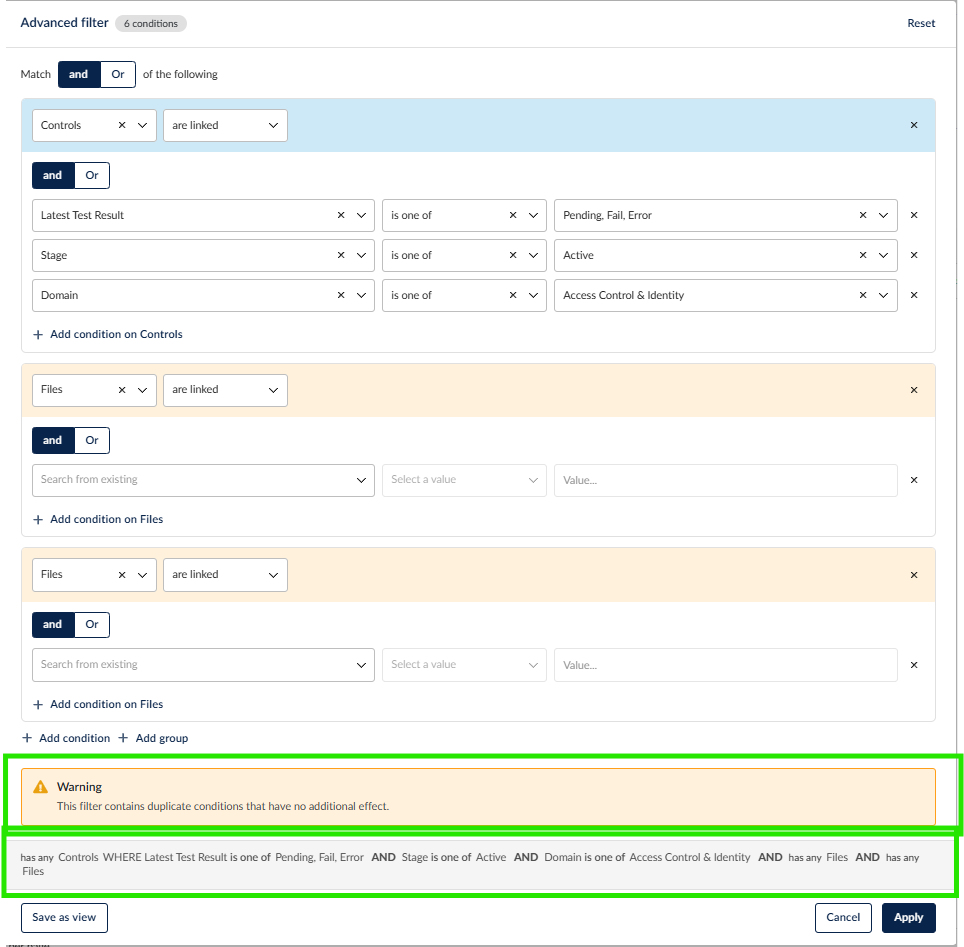
The configured filter conditions are highlighted at the bottom of the window, making it easy to review the criteria that have been applied.
If duplicate conditions are added, a pop-up warning message is displayed to notify you that the filter contains duplicate conditions. Duplicate conditions have no additional effect on the filter results.
Useful links