
The Files register gives you a single, searchable inventory of files across your iGRC registers. Each record holds the file itself, its version history, validity and expiry dates, who uploaded each version, and the records such as controls and tests to which it is linked. You can use the Files Register to keep evidence current for audits, reuse files across controls and frameworks, and maintain a defensible trail of what existed and when.
The Files register will capture new records captured from attachments or uploads made to other iGRC registers (Controls, Tasks, Tests). It will not contain custom register attachments present or added to other custom registers.
Table of contents
- Getting started
- Adding files to the register
- Uploading evidence to a control test
- Creating manually
- Developer API
- File versions
- File validity & expiry
- Linking tests and other data
Getting started
The Files register is one of the registers associated with iGRC. Along with the tasks, tests, and controls registers, it can be found by clicking on the Registers module and then clicking on Files. As with other registers, you can search, filter, sort, and manage columns, and add custom fields.
For a comprehensive overview of how to modify and understand the register's settings and workflow options, head here.
If you wish to modify or add custom fields to the Files register, head here to learn more.
Adding files to the file register
File records are created in the following ways:
- Evidence uploads on Tests and Tasks. When you upload a file as evidence on a test log — from the Evidence tab or through a Hailey chat on the test or task, a record is created in the Files Register automatically, categorised as Evidence.
- Manual creation.
- Add a file directly to the Files Register (see below) and then link it to the records it supports. The Link panel offers, e.g., Assets, Controls, Control sets, Control responsibilities, Issues & incidents, Projects & playbooks, Provisions, Risks, Tasks, Tests and Third-Parties as potential links to this file.
- Add an attachment to a custom register. When you open the custom register item and add an attachment, you will be prompted for a description of the file and the file will be added to the Files register as well as visible on this custom register's object.
- Integration API. Files can be registered programmatically through the 6clicks Developer API — see Getting started with the 6clicks Developer API to learn more.
Creating a file record manually
- Navigate to the Registers module and open the Files register
- Click Create file
- Attach the file (21 file types are supported: documents (.docx, .doc, .pdf, .rtf, .txt, .md, .log), spreadsheets and data (.xlsx, .xls, .csv, .json, .xml), presentations (.ppt, .pptx), images (.png, .jpg, .jpeg), media (.mp3, .mp4), plus .zip and .msg). The default fault size limit is 100MB.
- Add a name and description for the file
- Click Create. The record appears in the register with version 1 attached — open the record to set its category and validity dates.
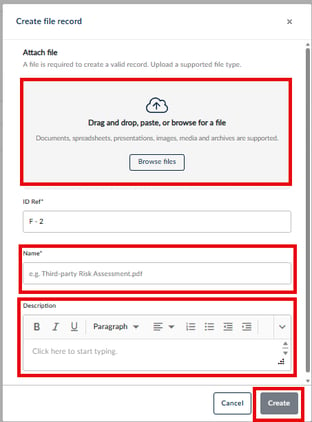
Media and archive files (.mp3, .mp4, .zip) are stored and versioned like any other record, but Hailey's document processing (summarisation and knowledge indexing) does not read them.
File versions
Each file record keeps every version that has been uploaded, so you always have a history of what the file looked like at any point in time.
- Open a file record and select the Versions tab
- Click Upload new version to replace the current file. Earlier versions are retained.
- Use the version actions menu (⋯) to manage a specific version:
- Download: downloads that file version
- Mark as current: promotes an earlier version back to current (disabled on the version that is already current)
- Edit: updates the version's notes and validity dates
- Delete version: remove the version. Deleting the current version prompts you to choose a replacement; the only remaining version cannot be deleted.
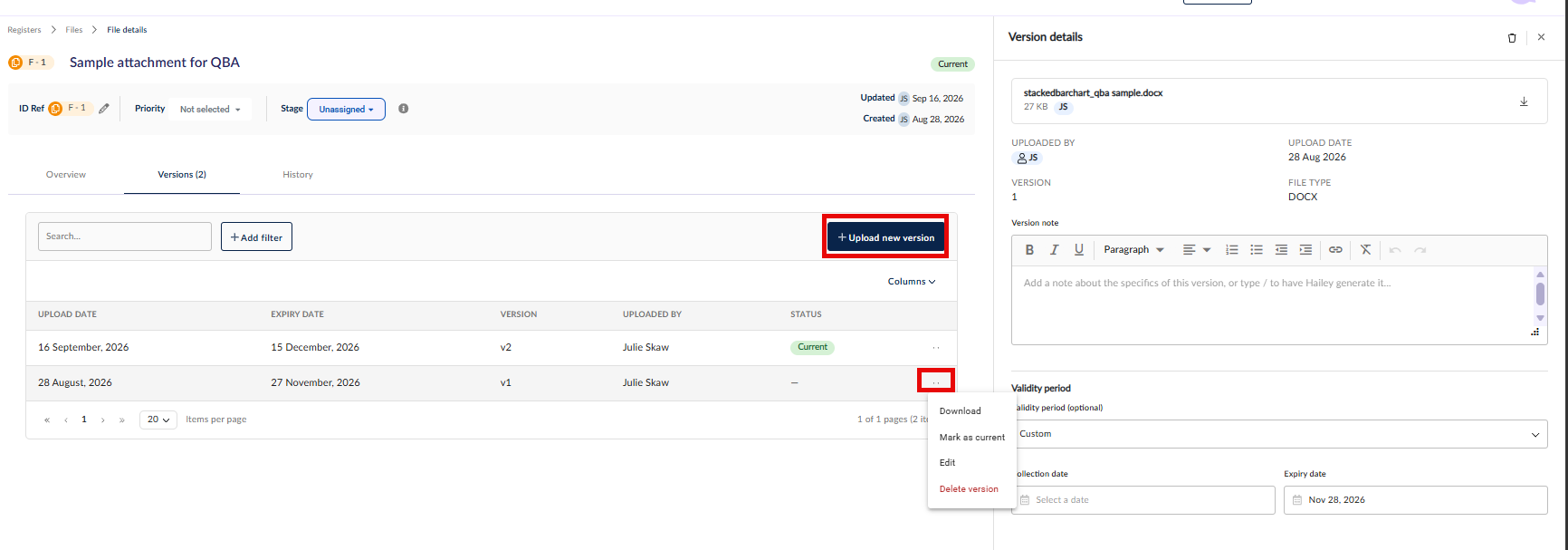
Deleting the current version prompts you to choose a replacement so the record always has a current file. When it is the only version, the delete is disabled
File validity & expiry
Each record carries Valid from and Expiry dates. The register's Status column shows each file as Current, Stale (within 30 days of expiry) or Expired, so you can spot lapsing evidence before an audit does.
To modify or update the validity and expiry dates on a record:
- Open a file record
- Set or update Valid from and Expiry in the record details
- To review files lapsing in a chosen window, use Add filter → Expiry Date and pick a date range
Linking tests and other data
File records can be linked to other records — controls, tests, assets and more — through linked data, giving you a live picture of what each file supports.
- Open a file record and select the Linked data tab
- Click Link and choose the records to associate
Head here to learn more about Hailey's suggestions.
Using a file as control test evidence
A file record becomes evidence when it is linked to a test that has a validation guide and evaluation criteria. Once linked, Hailey assesses whether the file demonstrates the control operated effectively, evaluating it against the test's validation guide and the linked control and framework requirement, the way an experienced auditor would.
To learn more about control test evidence submission & validation, head here.
Reusing a file
A file collected once can serve as evidence in more than one place — you do not need to upload it again for each test or framework.
- On a test log's Evidence tab, click Link files and select an existing record from the Files Register
- Alternatively, open the file record's Linked data panel and link it to the controls, tests or assets it supports
Links point to the file record rather than a copy, so wherever the file is used, the current version is the one in play. In other words, when you upload a replacement file version, every place that file is referenced will reference the current version.