
Before you start
- Hailey-assisted register-item mapping feature must be enabled for your tenant. If it isn't, you'll see Hailey-assisted register-item mapping is not enabled for this tenant. Please contact support to enable this feature.
- Users need permission to link the items involved. Without it, the accept action shows Requires permission, and attempting to accept returns You do not have permission to link these register items.
- The record needs a description. Hailey works from the record's content, so a record with an empty description shows Add a description so Hailey can suggest linkages.
The Suggestions panel
Open a register item and find the Suggestions panel — Hailey recommendations based on this record. It shows:
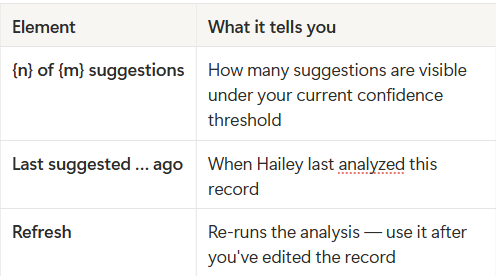
You can collapse the panel if you'd rather not see it while working.
While Hailey is working, you'll see Loading suggestions…, or Hailey is still getting ready — suggestions will appear shortly the first time. If there's genuinely nothing to propose, the panel reads No suggestions to show.
Reading a suggestion
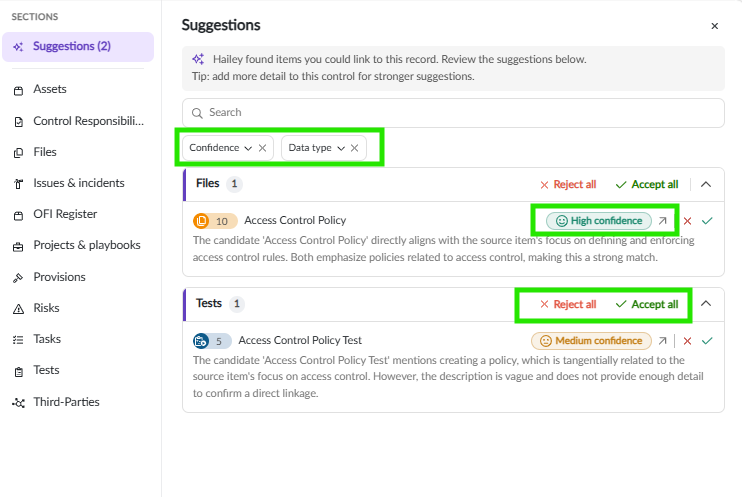
Each suggestion displays the item identified by Hailey, along with an associated confidence rating. The confidence ratings are outlined below.
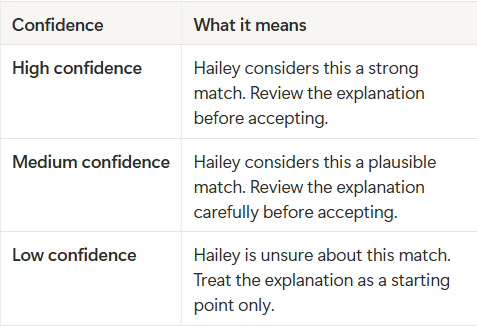
Recommendations also include the rationale behind each suggestion, providing insight into why the items were selected and how the associated confidence rating was determined.
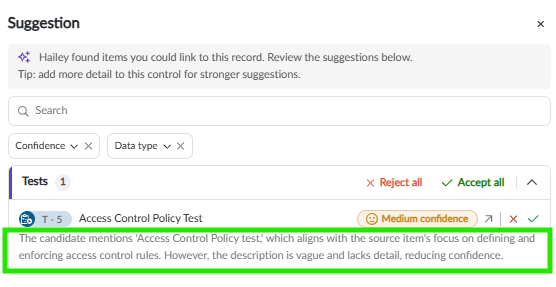
You can also open the suggested item in a new tab to read it in full before deciding.
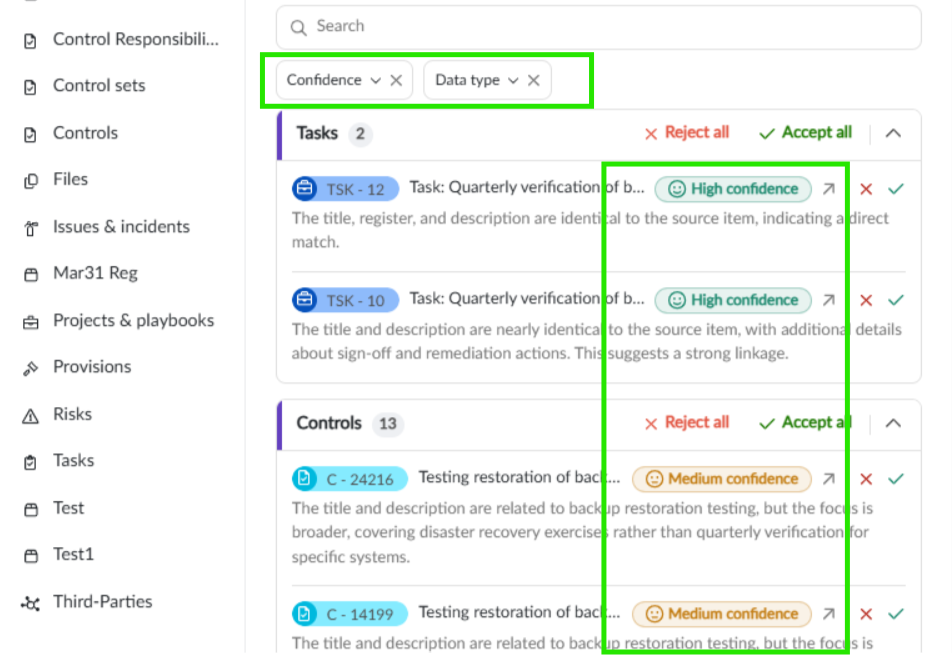
Confidence threshold: filter the panel to High only or High & medium to keep the list focused. Low-confidence suggestions are the ones most worth reviewing individually rather than in bulk.
Accepting and rejecting
- Accept creates the linkage immediately — the item moves into the record's linked data.
- Reject dismisses the suggestion and teaches Hailey. Rejections feed back into the model, so rejecting a bad suggestion is more useful than ignoring it.
For a record with many suggestions, Accept all and Reject all act on everything currently visible under your threshold. Suggested items are displayed by group based on the applied filters. The image below illustrates how items are grouped according to confidence level.
After a bulk accept, you'll see a summary — Accepted {n} suggestion(s); {m} could not be linked — so you can tell whether anything was skipped, usually because of permissions.
If permissions changed while you were working, you'll see: Some Hailey-suggested linkages couldn't be accepted because permissions changed. Refresh the page to reload your access.
Changed your mind?
The Recent Hailey accepts (last 24h) section lists what you've just linked, with an Unlink action on each. Unlinking asks you to confirm — You can re-link it manually later from the linked data panel — so an accidental Accept all is easy to undo.
Review and link related items to a control
Navigate to the Controls register and open the control you want to review. The Linked Data panel appears on the right-hand side of the screen.
This panel displays:
Items already linked to the control.
Items Hailey has identified as potentially relevant, such as risks, issues and incidents, provisions, tests, and files.
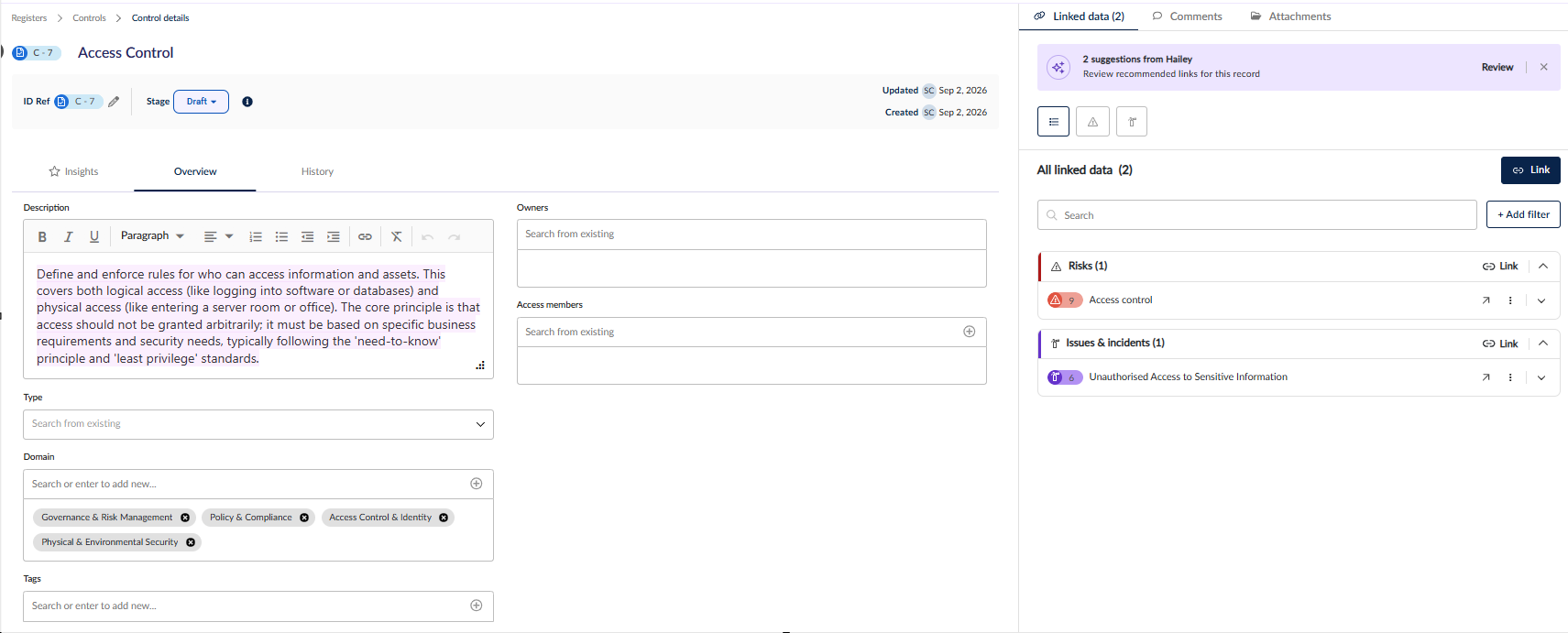
Select Review to view Hailey’s suggestions.
In the review window, you can:
Enter text to search for a specific suggestion.
Filter suggestions by confidence rating or data type.
Select the arrow next to a suggestion’s confidence rating to open the item in a new browser window and review its details.
After reviewing an item, close the additional browser window and return to the original window.
Choose what to do with the suggestion:
Select the tick icon to accept the suggestion and link the item.
Select the cross icon to reject the suggestion.
Select Accept all suggestions or Reject all suggestions to review all remaining suggestions at once.
When items are linked, the relationship is shown on all linked records.
Note: Hailey can only suggest related items when the register item has a description. If the description is empty, the Suggestions tab will prompt you to add one before Hailey can start making suggestions.
Manually link an item
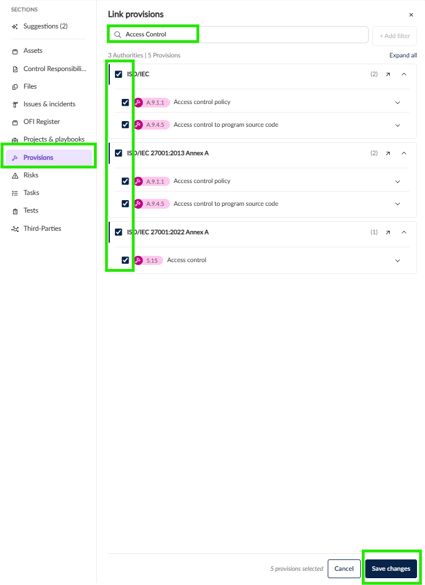
Permissions
• Edit permissions on the register of the record you are working in
• Access to the register
Useful links