
Overview
Evidence validation lets Hailey review the files you attach as evidence and tells you whether they actually demonstrate that the control worked. Hailey assesses the evidence against a validation guide, the criteria that define what good evidence looks like for that test, and returns a result, a quality rating, a count of requirements met, and a set of gaps with suggested actions.
Hailey's output is an assessment, not a decision. The log's status and result are always set by a person.
Table of Contents:
Setting the stage for evidence validation
Prerequisites:
-
A test has been created in the tests register
-
The test is linked to a control, and that control must have a description. Hailey writes the validation guide from this description.
-
Automated evidence validation is enabled on the test, with a validation guide in place
Note: Hailey derives the guide from the linked controls and their provisions. A vague control produces a generic guide that will pass almost anything; a control naming the specific systems, objectives and sign-offs produces criteria worth testing against. Getting the control description right is critical to producing a useful validation guide.
Turning on automated evidence validation
Navigate to Registers, Tests and select the test in question. On the test's Configuration tab, set Automated evidence validation to Enabled. Each time evidence files are uploaded, a validation result is generated against the guide below.
The validation guide
Below the toggle for enabling evidence validation is the validation guide section. The guide is used to assess whether submitted evidence fulfills this test. The following describes who owns the guide, i.e., who is responsible for updating it.
Managed by Hailey: Hailey uses your test details and linked data to maintain and refine this guide. It keeps improving as you link more data to the test.
Manage manually instead: You own the wording and edit the guide directly.
You can switch this ownership at any time. Where Hailey owns the guide, the test header confirms it: Hailey has written a validation guide - Hailey will continuously update as you add more data. Manage manually instead if you want to make changes.
Generating a validation guide
If the prerequisites have been met and the validation guide is set to be managed by Hailey, select Generate guide. Hailey writes it in the background from the test's details (including its type and frequency), any linked controls and their descriptions, and the framework provisions mapped to those controls or linked to the test directly. Tags, custom fields, and linked assets and tasks also factor into the guide.
When a test is linked to more than one control, Hailey uses all of them. Each linked control contributes its description and its framework provisions, and the resulting guide covers the combined requirements rather than picking one control.
Note: There are limits on how much linked data feeds a single guide. Controls, provisions, tasks, assets, tags and test attributes all draw on a shared budget, and only the first few provisions per control are included. If a test carries a very large amount of linked data, generation can fail with the linked data is too large for Hailey to process. If this occurs, reduce the number of linked items and regenerate.
Keep tests narrowly scoped. Because the guide covers the union of every linked control, linking several loosely-related controls to a single test produces a broad guide that asks for everything each control requires — and evidence has to satisfy all of it. A test linked to one well-described control produces sharper, more testable requirements.
While the guide is Managed by Hailey, its text is read-only and cannot be edited. The validation guide can only be edited when it is managed manually. The available actions are Generate guide and Manage manually instead.
That gives you two approaches, and which one to use depends on whether you want Hailey to keep maintaining the guide afterwards.
Managed by Hailey
If you want Hailey to keep managing it, change the inputs, not the guide.
Hailey writes the guide from the test details, the linked controls' descriptions, and the framework provisions mapped to those controls or linked to the test directly. So the way to steer a Hailey-managed guide is to sharpen what it is written from:
- Edit the linked control's description so it states the specifics you want reflected — the systems in scope, the objectives to be met, the frequency, and who signs off.
- Edit the test description with the same guidelines.
- Use the test's custom fields to record anything else that should shape the guide — the test's own fields are read as context when the guide is written.
- Verify that the control is mapped to the provisions that actually apply. Hailey reads the linked framework provisions alongside the control description, so an accurately mapped control produces a guide grounded in the framework's own requirements rather than in general good practice. Map provisions because they genuinely apply to the control — never to influence the guide. If the mapping is already correct, there is nothing to do here.
- Select Generate guide to regenerate.
This is the recommended route. The guide stays under Hailey's management, keeps improving as you add linked data, and your intent is captured in the control where it also benefits every other test linked to that control.
Manage manually instead
If you need exact wording, switch to manage manually instead.
- Select Manage manually instead. The guide switches to Managed manually.
- Edit the guide text directly and save.
- If you later want Hailey to resume maintaining it, select Ask Hailey to manage.
Be aware of the trade-off: there is no guarantee manual edits are retained. Once a guide is handed back to Hailey, Hailey maintains it and will overwrite it when it regenerates. If specific phrasing has to persist exactly, leave the guide in manual mode.
Where Hailey owns the guide, the test header confirms it: Hailey has written a validation guide — Hailey will continuously update as you add more data. Manage manually instead if you want to make changes.
Assurance scheme
Every guide is written through the lens of an assurance scheme, the standard that decides what counts as strong evidence, what is merely acceptable, and where a policy document is never enough on its own. Hailey chooses that lens per test automatically, working down four tiers. The first tier that applies wins; the tiers are not blended.
| Tier | When it applies | What Hailey does |
|---|---|---|
| 1. Your wording | Guide is set to Manage manually instead | Nothing. Hailey never generates over a manually managed guide. |
| 2. A supported framework on the test's controls | The test, or a control linked to it, carries provisions from one of the supported frameworks below | Grounds the guide on that framework's own requirements and its published assessment guidance instead of a general lens. This overrides the register's assurance scheme. |
| 3. The register's assurance scheme | An admin has set Assurance scheme on the Tests register | Applies that standard's evidence-quality expectations |
| 4. Platform default | None of the above | Falls back to ISO/IEC TS 27008, a framework-neutral good-practice lens |
Tier 2 is triggered by four frameworks, and only the 6clicks-published copy of each, not a custom authority you have created yourself:
- ISO/IEC 27001:2022 Annex A
- NIST Cybersecurity Framework (CSF) 2.0
- PCI-DSS 4.0.1
- Information Security Manual (ISM) — any dated release
Provisions from any other framework are still read. Hailey writes the guide against every provision linked to the test or its controls, whichever framework they come from. What the four frameworks add is their own published assessment guidance — the standard for judging evidence against that specific requirement. Everything else is assessed under the register's assurance scheme or the platform default.
Where a mapped provision carries its own authored assessment guidance, that guidance becomes the standard for that requirement, ahead of any general quality tiering. Where more than one supported framework is mapped to the same test, all of them inform the guide; where their requirements overlap, the more prescriptive one drives.
Setting the assurance scheme for a register
The scheme is a Tests register setting, not a per-test one, and only an admin can change it. On the register's settings, Assurance scheme offers — Choose the assurance scheme that applies to this register. We recommend ISO/IEC TS 27008 (general good practice) by default.
- ISO/IEC TS 27008 (general good practice) — the default
- ISO/IEC 27001:2022 (Annex A)
- SOC 2 (AICPA Trust Services Criteria)
- PCI-DSS 4.0.1
- NIST Cybersecurity Framework (CSF) 2.0
- IRAP (Information Security Registered Assessors Program)
Leaving it unset behaves identically to choosing ISO/IEC TS 27008.
Changing the scheme does not rewrite guides that already exist. It applies the next time a guide is generated or regenerated — regenerate the tests you want reassessed under the new lens.
Format and review of validation guide
A validation guide generated by Hailey is a structured document with distinct sections and is not written in paragraph format:
|
Section |
What it holds |
|
INTENT |
What the control is really trying to achieve, and what kind of evidence therefore counts |
|
REQUIRED EVIDENCE |
The mandatory items — validation cannot pass without it |
|
(strengthening evidence) |
Items that improve the assessment but are not required |
|
PASS CRITERIA |
What must be verified for the control to pass |
|
FAIL CRITERIA |
Conditions that force a not-satisfied assessment |
|
FRESHNESS |
How recently evidence must be dated. Derived from the test cadence, for example, a quarterly test yields 90 days. Undateable documents are flagged as a gap. |
|
REVIEW CADENCE |
How often the control should be tested |
|
KEY TERMS |
The vocabulary Hailey looks for when reading evidence |
Note: Read the guide before you rely on it. It is the specification every validation is judged against.
Supporting Files
Attach reference material, e.g., policies, templates, or examples that help explain how evidence should be validated. Drag and drop, paste, or browse for a file. Because images are supported and the drop zone accepts a paste, you can put a screenshot straight in with Ctrl+V.
Supported types: .docx, .xlsx, .pdf, .md, .txt, .png, .jpg, .jpeg.
These files are reference material for Hailey, not evidence to be validated.
Collecting evidence
When a log is set to Ready to collect evidence, the evidence guide as it then stands is captured against that log. This is a read-only snapshot of the test at the time this log was created. Edit the parent test to update its configuration.
Evidence is therefore assessed against the criteria that applied at the time, and later edits to the guide never retrospectively change a log. Editing the test will not change an existing log or logs.
Log state and behavior:
| Log state | Effect of editing the test |
|---|---|
| Not yet set to Ready for evidence collection | The log uses the current guide, so your changes are picked up. |
| Already set to Ready for evidence collection | The log keeps the guide it captured. Your changes apply to the test and to future logs, but not to this one. |
This is deliberate. Once evidence is being assessed against a guide, a later change to the test cannot retrospectively alter the criteria that evidence was judged against, which is what makes a completed log defensible to an auditor.
If you wish a log to use an updated guide, update the test first and then set the log to Ready for evidence collection, or start a new log. Editing the test afterwards will not reopen a snapshot that has already been taken.
Adding evidence
On the log's Evidence tab: Link or upload files. Anything added here becomes Evidence, and Hailey validates it against this test's requirements.
- Upload evidence — add files from your machine
- Link files — attach files that already exist in the Files Register. Supported file types: .txt, .json, .pdf, .docx, .xlsx, .png, .jpg, .jpeg.
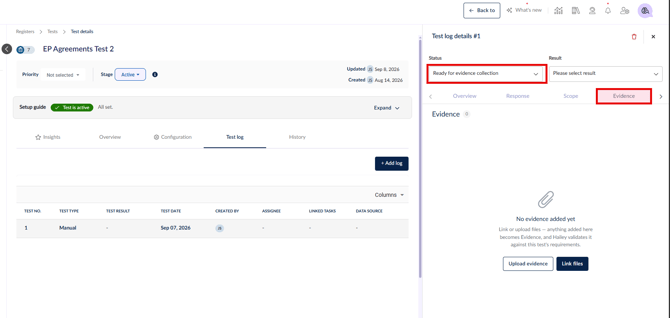
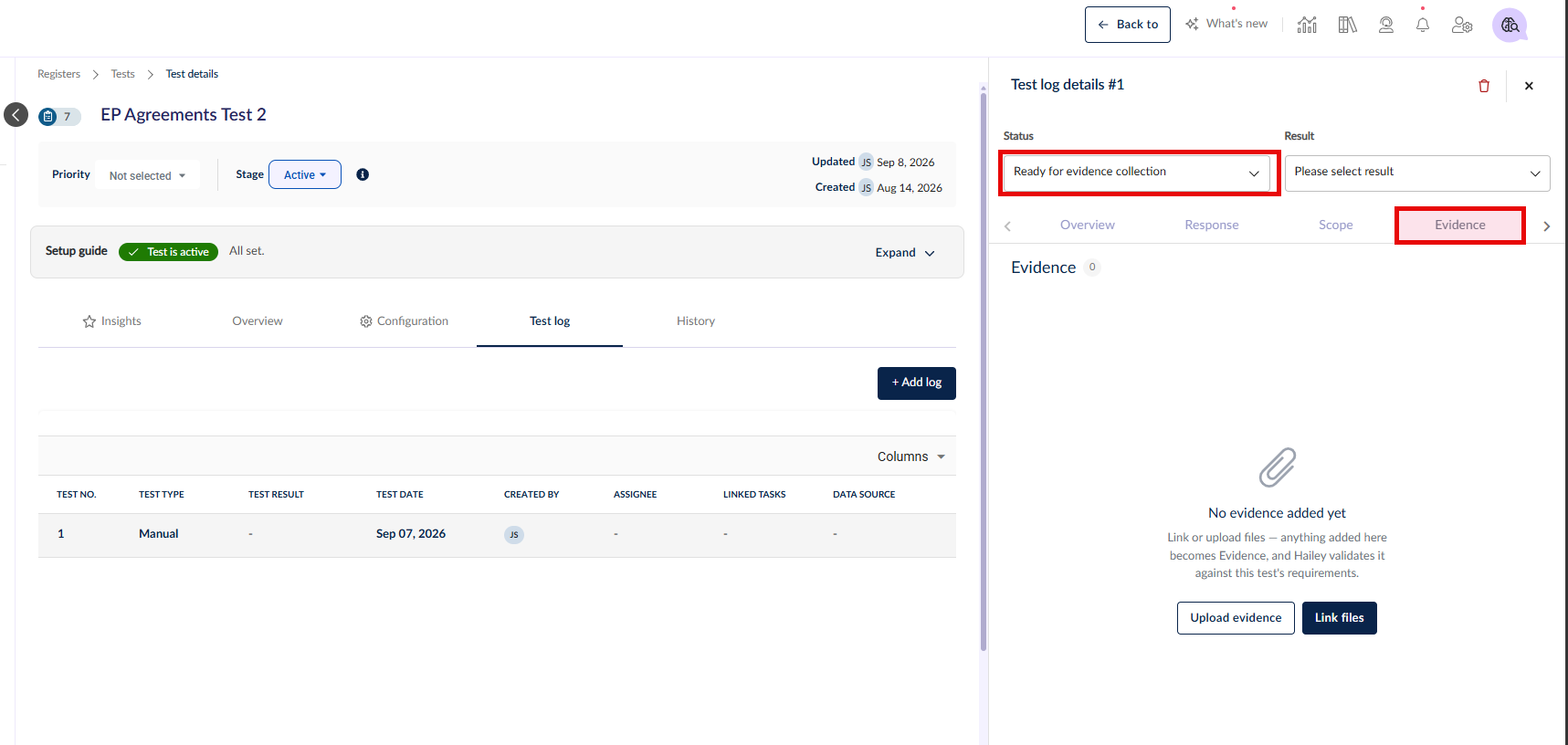
Validation starts automatically on upload. Files also appear in the Validation tab's Files panel, where you can attach more directly.
Reading the validation result
Once evidence has been uploaded, open the Validation tab on the test log. It sits alongside Evidence and Findings in the log's side panel:
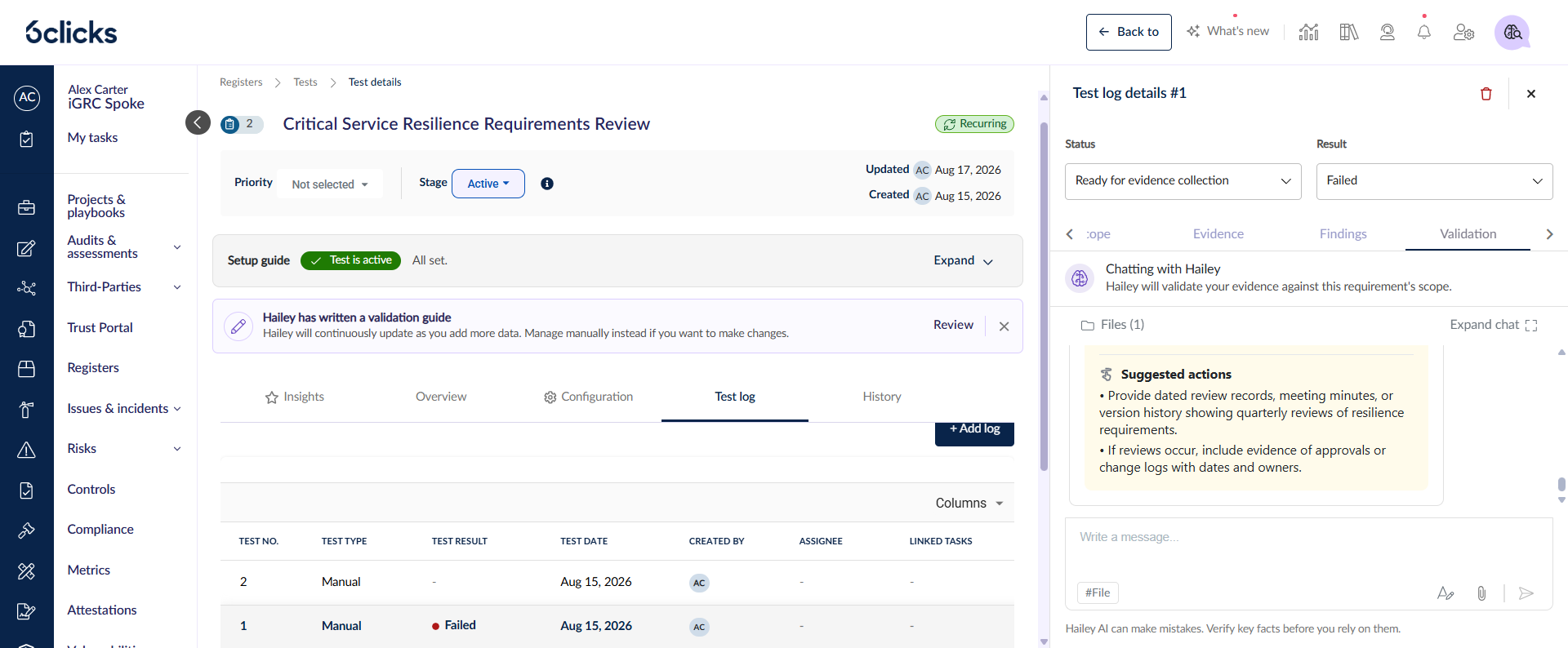
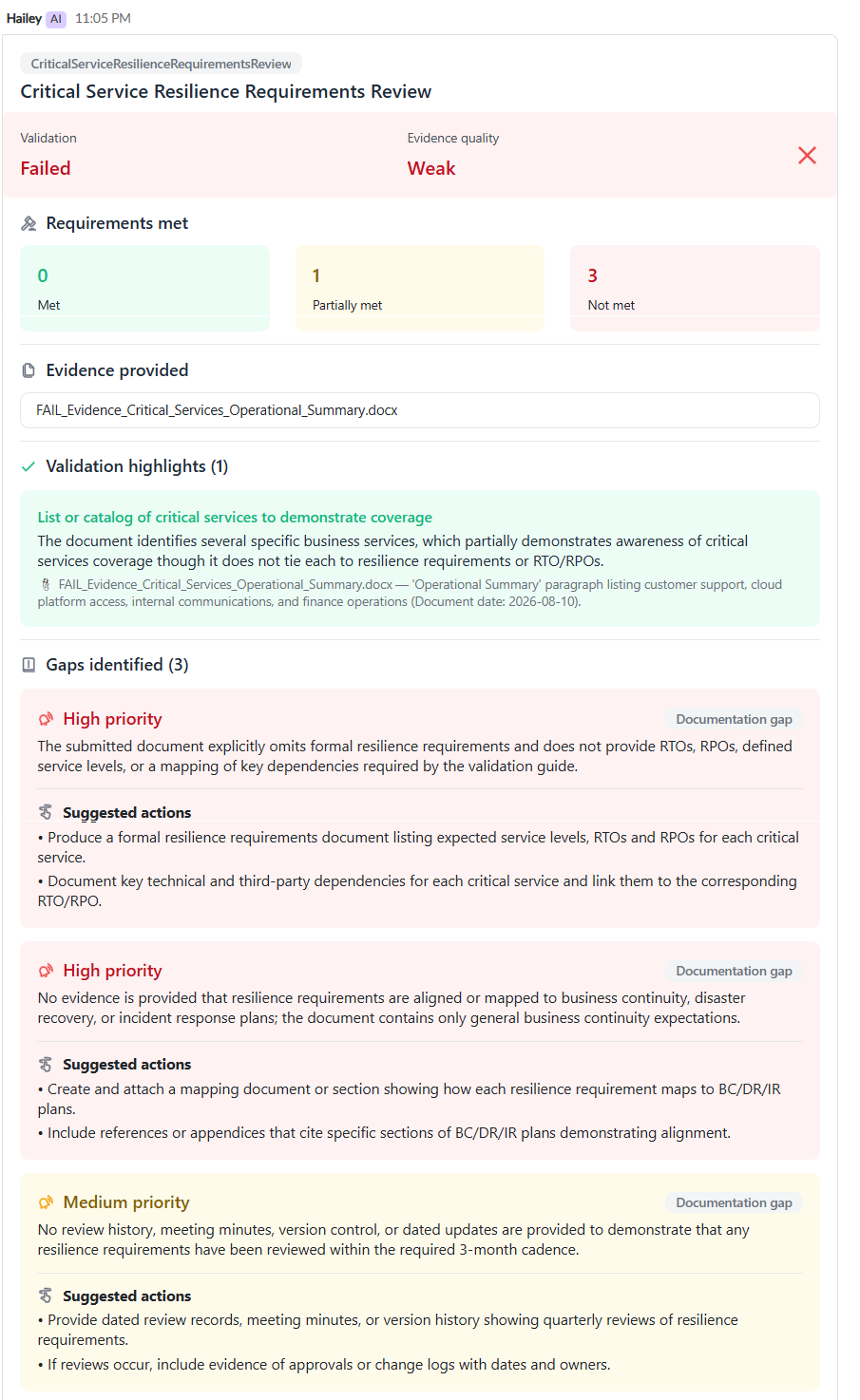
The Validation tab is a conversation with Hailey — Hailey will validate your evidence against this requirement's scope. Each validation posts a result card:
|
Field |
What it tells you |
|
Validation |
Passed, Partial or Failed |
|
Evidence quality |
A qualitative rating, e.g. Strong or Weak |
|
Requirements met |
Counts against the guide's requirements — n Met · n Partially met · n Not met |
|
Evidence provided |
Every file the assessment considered |
|
Validation highlights |
What Hailey found, each citing the source document |
|
Gaps identified |
What is missing, each with a priority, a type, and suggested actions |
Validation is cumulative, not per file. Each card assesses the entire evidence set attached to the log at that moment. The Evidence provided field lists every file considered, not just the newest. In other words, adding stronger evidence can lift a Partial or Failed log to Passed without removing the weaker files.
Read the verdict, not the counters. Validation: Failed with 1 Partially met means the overall assessment failed, and one individual requirement was partially satisfied. The counters describe requirements; the verdict describes the evidence set.
This is an example of a complete result card, from the verdict through to the gaps and their suggested actions:
Validation highlights cite their sources
A validation highlight names the requirement to which it relates, explains what the evidence does and does not demonstrate, and quotes the document. For example, against a requirement for measured recovery objectives:
The report documents incremental backups every 15 minutes for all four systems, which demonstrates the backup configuration can support a 15-minute RPO objective, but it does not demonstrate measured RPO from restoration tests.
📎 'Backup Schedule Configuration' lines showing 'Incremental Every 15 min'
Gaps identified tell you what needs to be collected
Each gap carries:
- Priority: High or Medium
- Type: Coverage gap (something wasn't tested or covered) or Documentation gap (it may have happened, but isn't evidenced)
- Suggested actions: concrete next steps, e.g. "Record and provide measured recovery time and recovery point results from each restoration test and compare them to the 4h RTO and 15min RPO."
In practice this is the most useful part of the feature: a failed validation is a to-do list, not just a verdict.
Re-validating the evidence
Reference a file in the chat using the #File button and ask Hailey to validate it, for example, #my-evidence.pdf validate.
Every card carries the reminder: Hailey AI can make mistakes. Verify key facts before you rely on them.
Evidence validation on tasks
Evidence validation is also available to the people who collect and submit evidence, rather than only those who own the test. The task must be of type Evidence validation and linked to a test that has evidence validation enabled with a guide in place. Evidence is added on the task log and validated against the linked test's guide, producing the same result card.
Letting 6clicks create the task for you
The simplest route is to let the pairing happen automatically:
- Configure the test fully. Include a description, linked control(s) and other linked data, schedule and assignees, and make sure it has a validation guide.
- Activate the test. This creates the first test log.
- Set that log's status to Ready for evidence collection.
That status change triggers the pairing. 6clicks creates the matching task in the background, named after the test and prefixed Task: so the two are easy to tell apart. The test's schedule — start date, due date, repeat and frequency — is copied to the task, the task is activated, and its first task log is generated immediately.
This automatic creation only happens if no evidence validation task is already linked to the test. If you have already linked one yourself, 6clicks uses that instead of creating another.
Pairing a task you have already created
If you would rather create the task yourself:
- Create the test, but do not activate it yet
- Create the task
- From the task's Linked data panel, link the test
- Set the task's Type to Evidence validation
- Go back to the test, activate it, and set the test log to Ready for evidence collection. The task log is created for your linked task.
The order matters: the type cannot be set until an eligible test is linked. Until then you will see Link an eligible test first — the test must be manual, not archived, and in the Draft or Active stage.
Submitting evidence
Evidence can be uploaded from the Evidence tab of either the test log or the task log. Check you are on the log for the right date — evidence is shared between the test log and task log of the same date, not across dates.
Notifications
Your team can subscribe to evidence validation notifications, including when a validation guide has been generated, and when someone other than the test owner keeps a manually-managed guide after a regeneration. Configure these under notification management.
Final steps
Hailey assesses and you decide the outcome. A validation result never sets the outcome. After reviewing the assessment and the files it considered, a person sets the log's Status and Result.
Troubleshooting
| Symptom | Cause and fix |
|---|---|
| Hailey can't generate a validation guide | The test isn't linked to a control, or the linked control has no description. Link a control and give it a description. |
| The generated guide is generic and would pass almost anything | The linked control's description is too vague. Name the systems, objectives, roles and rules, then regenerate. |
| Hailey couldn't start generating the validation guide | Transient failure — try again. |
| The validation guide couldn't be generated because the linked data is too large for Hailey to process | Reduce the number of linked items on the test, then regenerate. |
| Validation flags a freshness gap on evidence that looks current | The document's date falls outside the window in the guide's FRESHNESS section, or no date could be determined. |
| A supporting file is rejected | Supporting files must be of type .docx, .xlsx, .pdf, .md, .txt, .png, .jpg or .jpeg. |
| The evidence indexing service is temporarily unavailable | Wait a few moments and try again. |
For more information on the topics covered here, please see the following articles:
Managing & configuring the Controls register
Managing & configuring the Files register