Table of contents
- Getting started
- Register tab
- Insights tab
- Viewer tab
- Control overview
- Comments & attachments
- Creating and linking data
- Control history
Getting started
If you are assigned as an owner to a control in the controls register, you may receive an email notification that looks similar to the below.
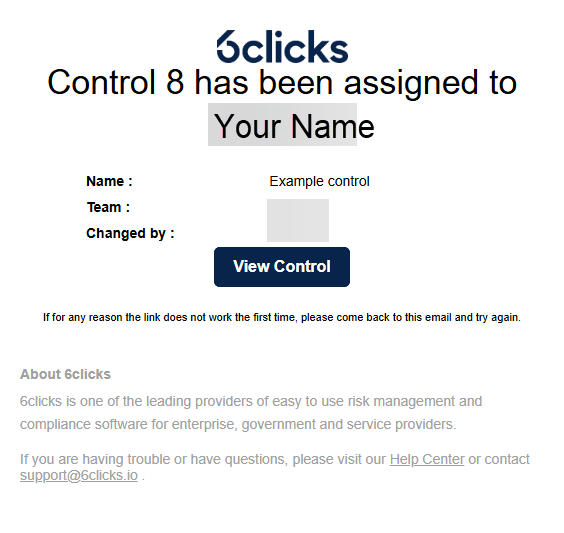
Click on the link to login and view the control.
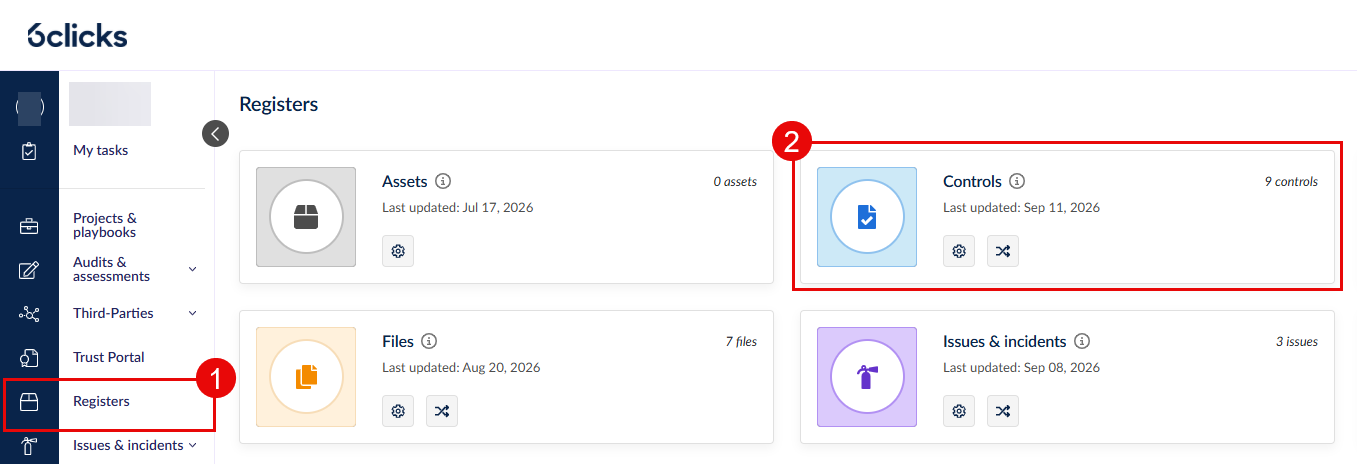
Alternatively, you can find all the controls visible to you by logging in and going to Registers > Controls.
Register tab
You can find all controls assigned or visible to you in the register tab. Head here to learn more about the filtering functionalities.
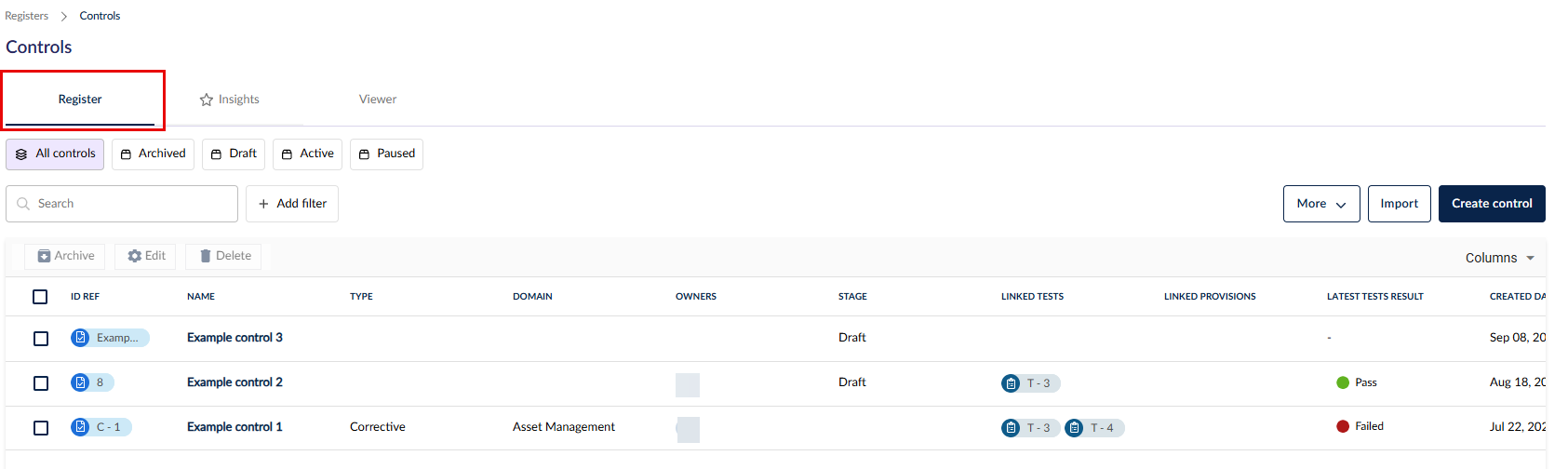
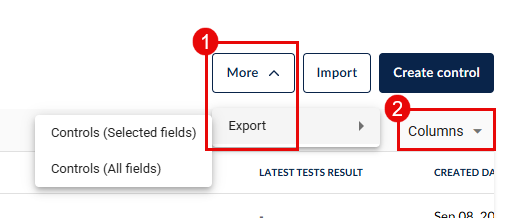
There are 2 ways to export the register records (1), one is to export all columns (including those not displayed in your register tab view) and the other is to export only the columns selected. To edit the selected columns, click on Columns (2).
You can perform bulk actions on your controls such as Archive, Edit, & Delete. Archived items are read-only and can be restored.
Insights tab
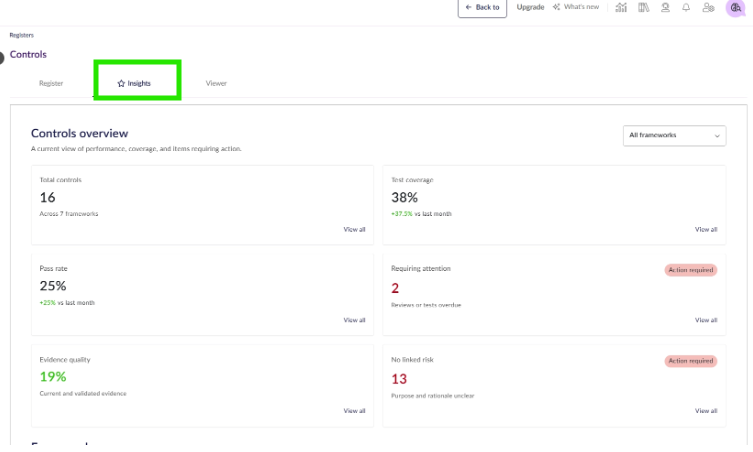
You can find useful charts and summaries in the insights tab.
Viewer tab
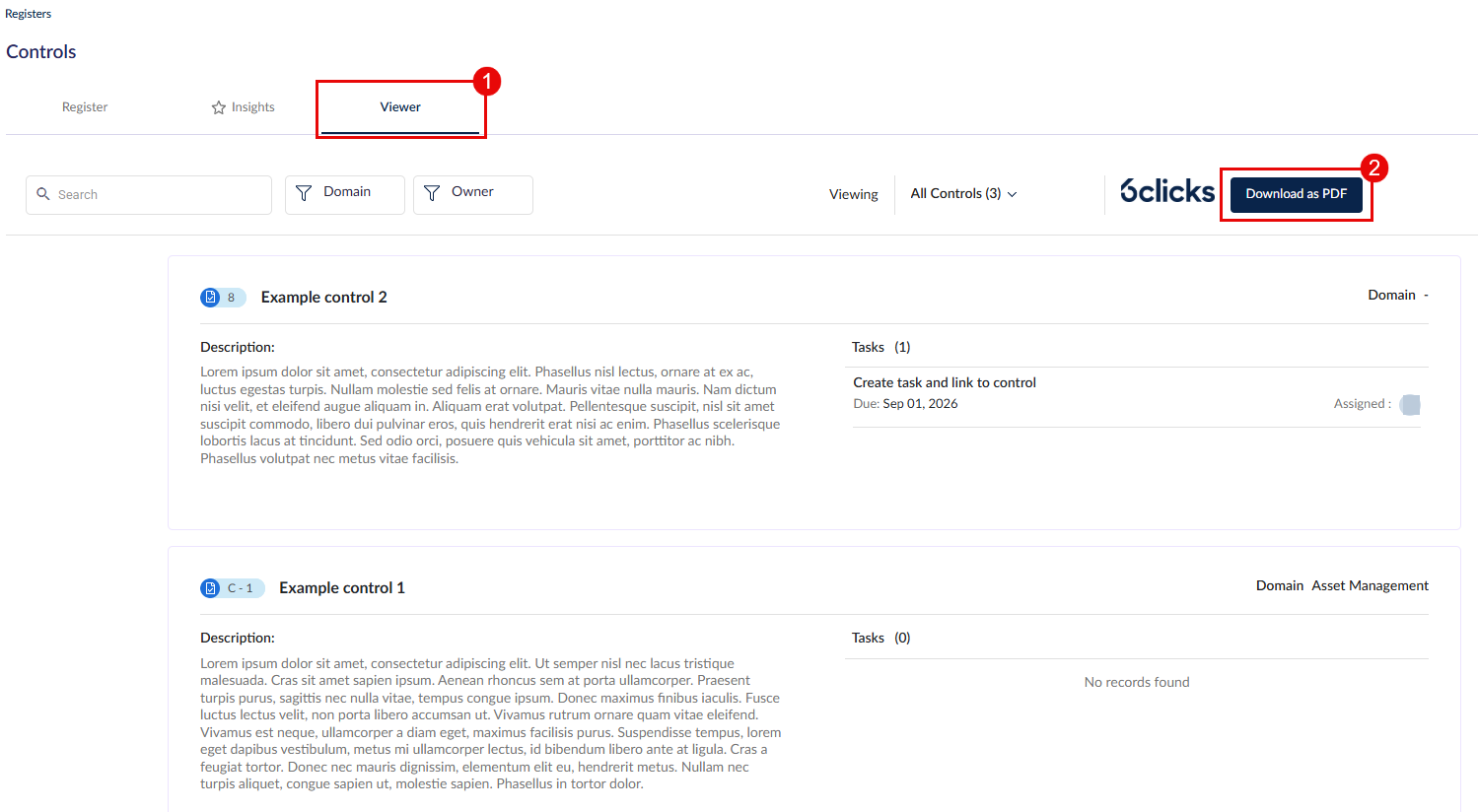
You can find a read-only view of your controls and their linked tasks in the viewer tab. You can export this view as a PDF.
Control overview
When you click on a control in the register, you will be taken to the Overview tab.
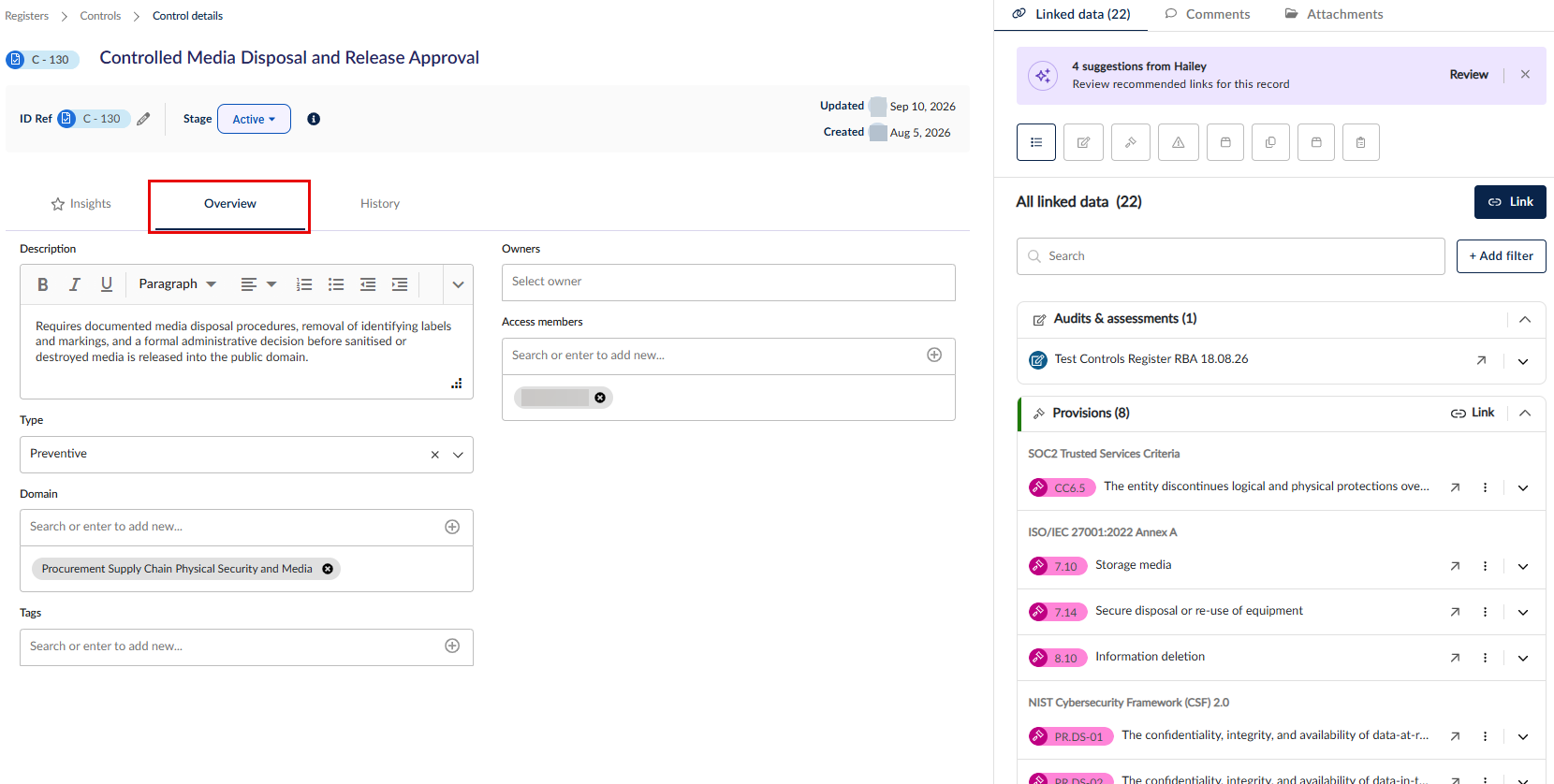
Here, you can manage your control's description, type, tags, and other details.
Comments & attachments
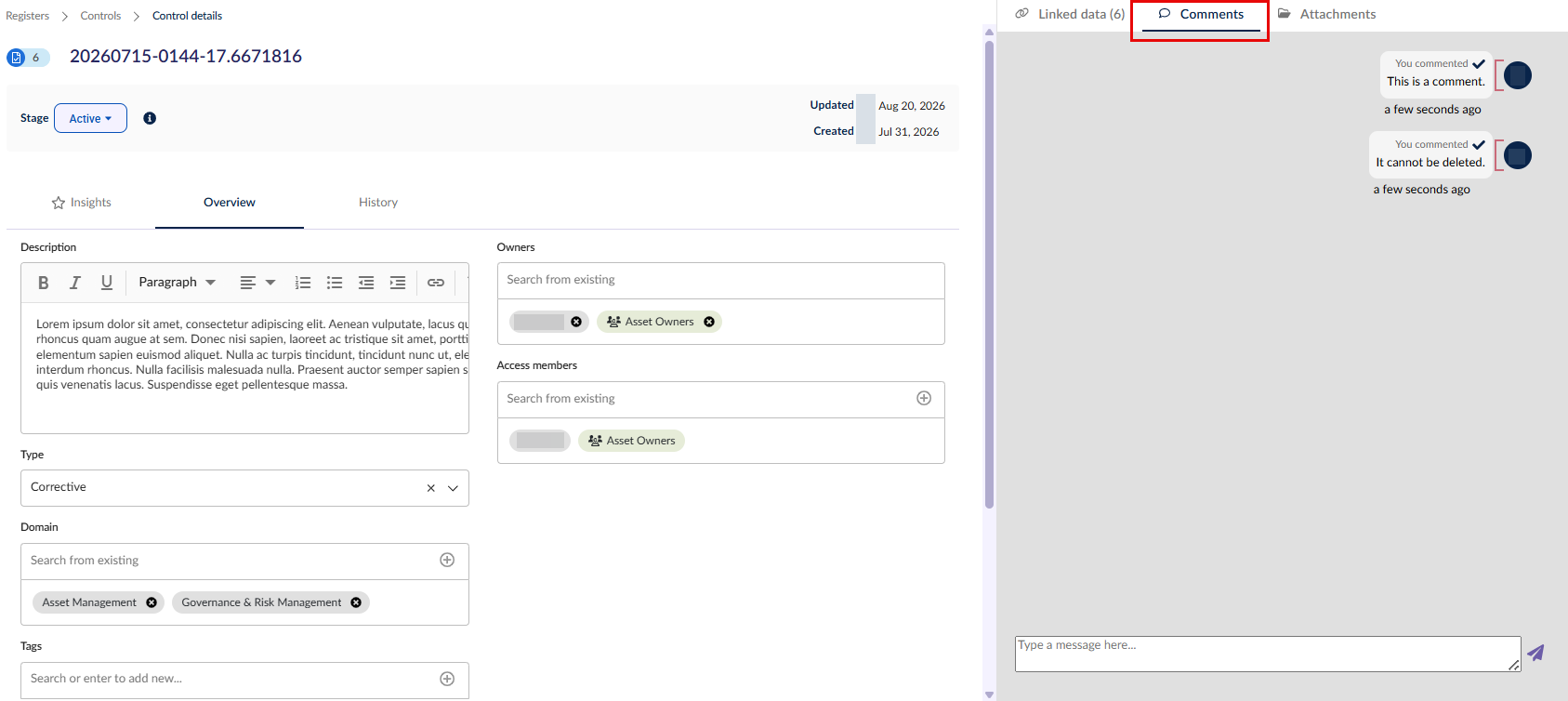
Use the Comments tab in the side panel to leave notes for other owners or access members of this control. A comment includes the timestamp and user name, and is not editable for audit purposes.
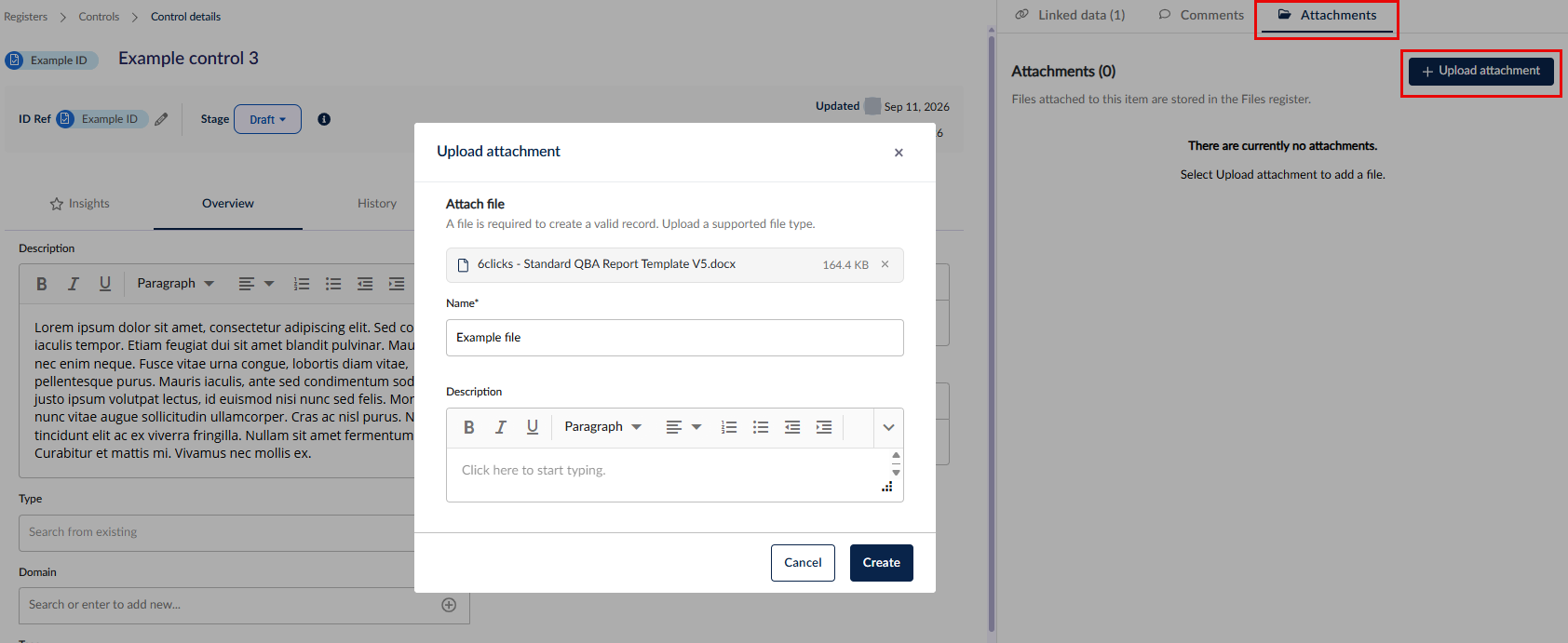
Use the Attachments tab in the side panel to add files to this control.
This is a generic way to link a file to a control. For adding files as evidence for the control test, head here.
The files will be added to the files register where you can add further details if you have relevant permissions. To head to the files register and access the file record, click on the arrow.
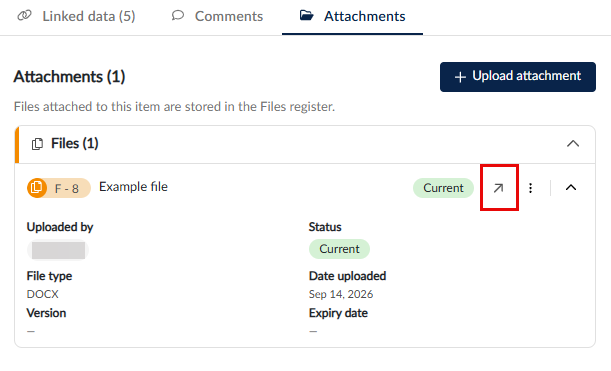
Without permissions to the files register, you can still add attachments to the control, but you won't be able to add further details to these files in the register.
Creating and linking data
The data linked to controls are used in the tests for this control as part of the scope when Hailey is used to validate the evidence submitted for the test.
Hailey may suggest linkages to relevant data from other registers in the side panel's Linked data tab.
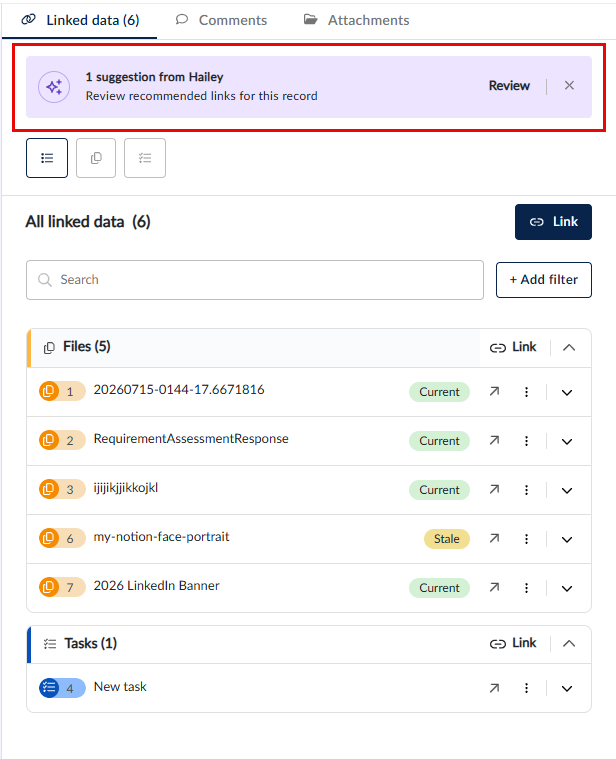
Click on Review to reject or accept Hailey's suggestions.
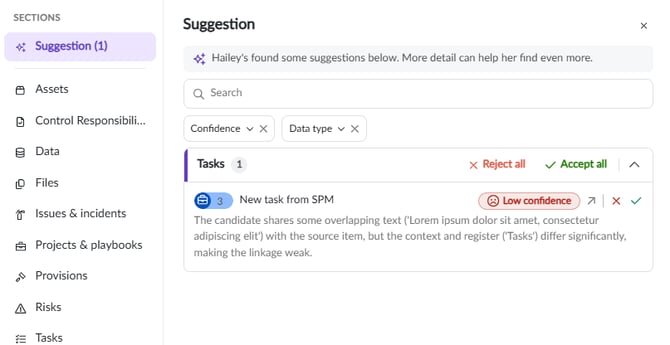
Head here to learn more about Hailey's suggestions.
In the Linked data side panel, you can filter by different data types (1), edit the linkages (2), and view, unlink or expand details of linked items from the registers and modules that you have permissions for.
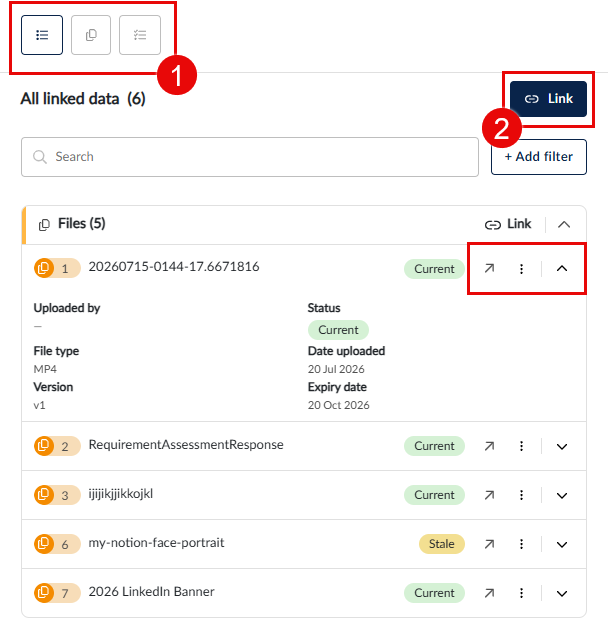
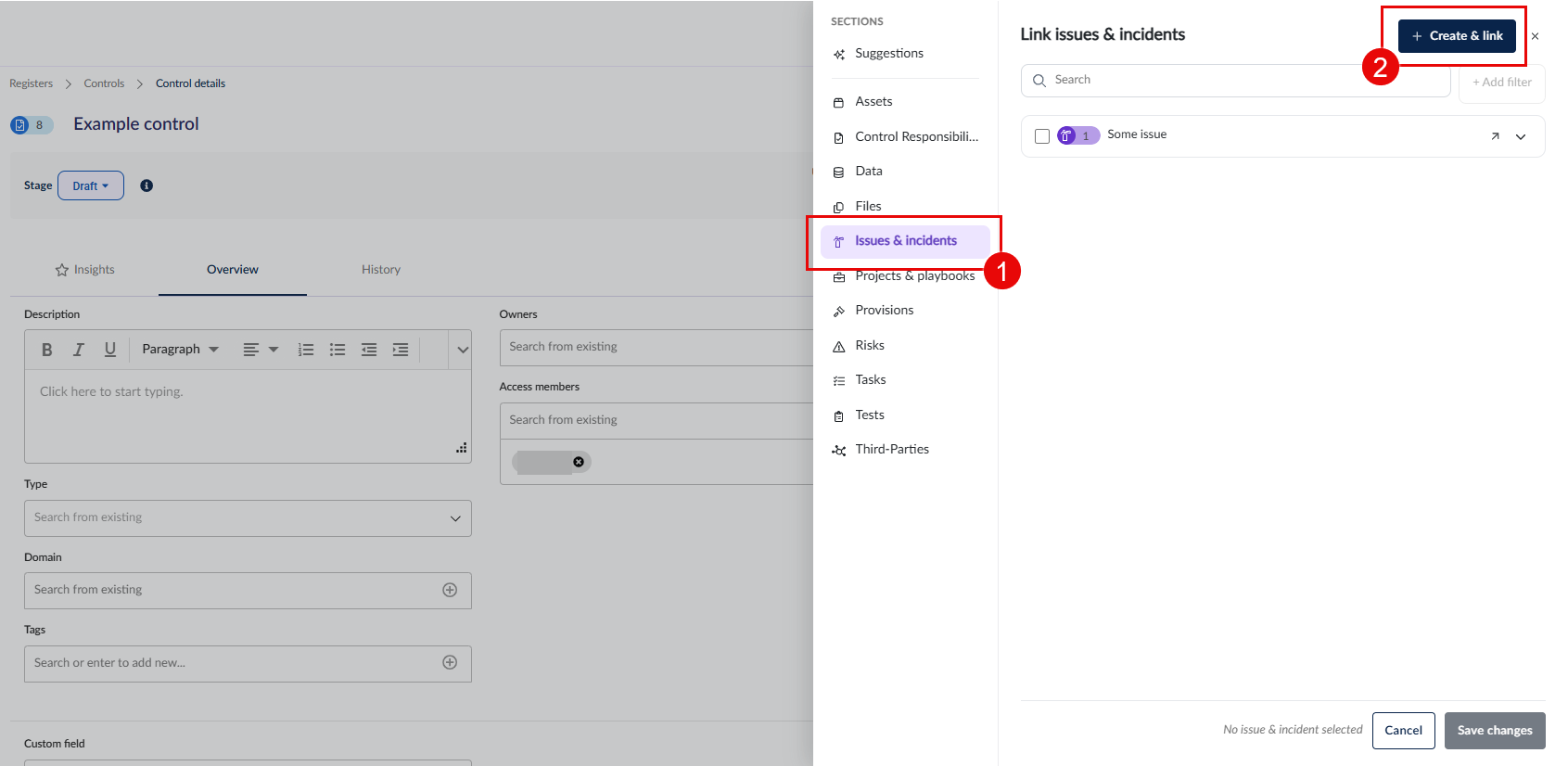
To link existing items, click on the link button. To create and link a new item, select the register you want to create the item in on the left (1) and then click Create & link (2). Once created with a name and description, the item will be automatically linked to this control.
Head here to learn more about linking tests to controls.
Control history
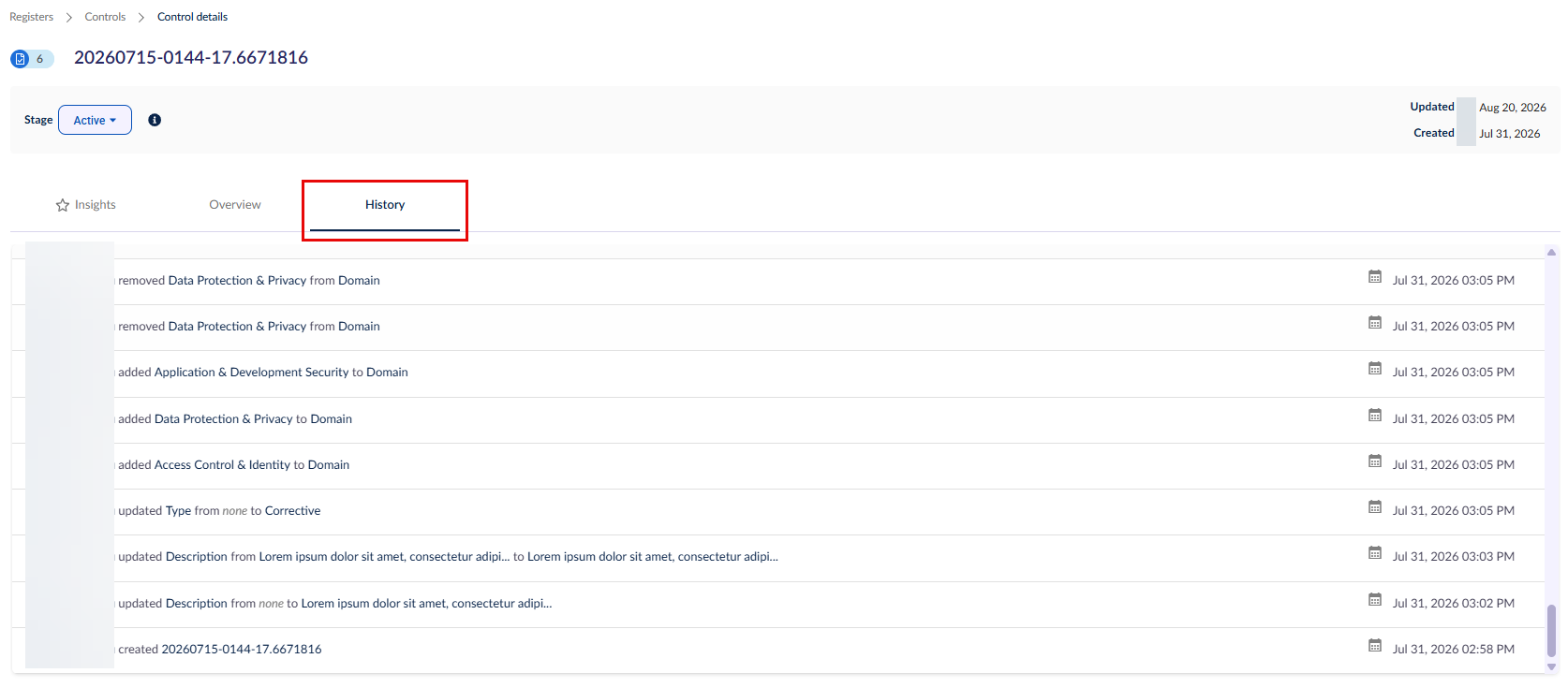
The history tab provides a full trail of the actions taken in relation to the control for audit.