
When you are working on a risk, 6clicks can help you find the controls and provisions that relate to it, either by suggesting them automatically, or by letting you search in your own words instead of guessing keywords.
Table of Contents
Find controls related to a risk
Navigate to the Risks register and open the risk in question.
Click on the Controls & Compliance tab. In the open menu to the right, any controls or provisions that 6clicks considers relevant appear in the list, marked with a sparkle icon.
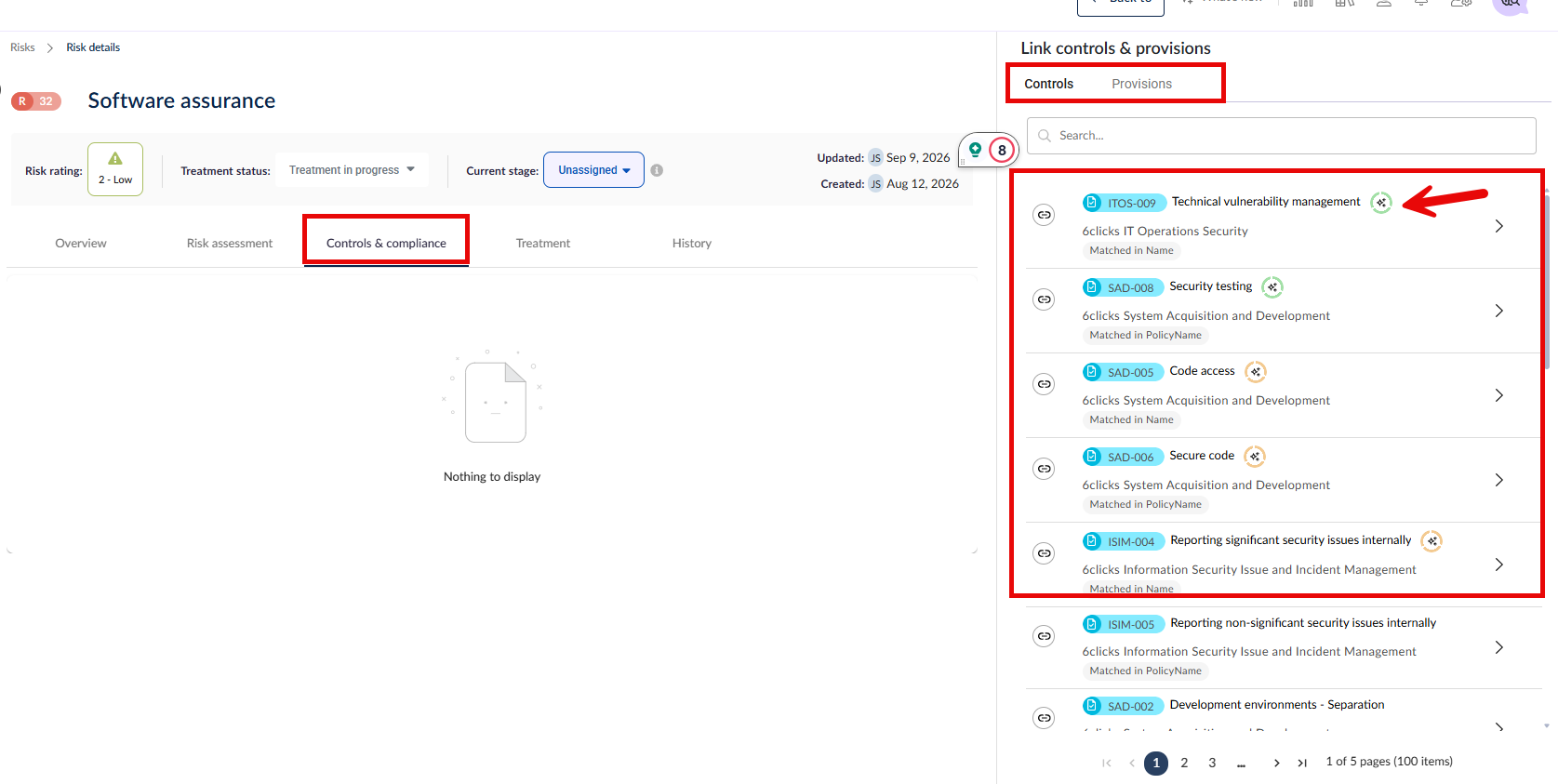
Suggestions are shown automatically. You do not need to search first. Each suggested item shows the control name, the policy or authority it belongs to, and a sparkle icon indicating how confident 6clicks is in the match.
Why is this control being suggested?
Select the sparkle icon next to a suggested control. A Hailey suggestions panel opens and explains why that control was matched to your risk, along with its confidence level.
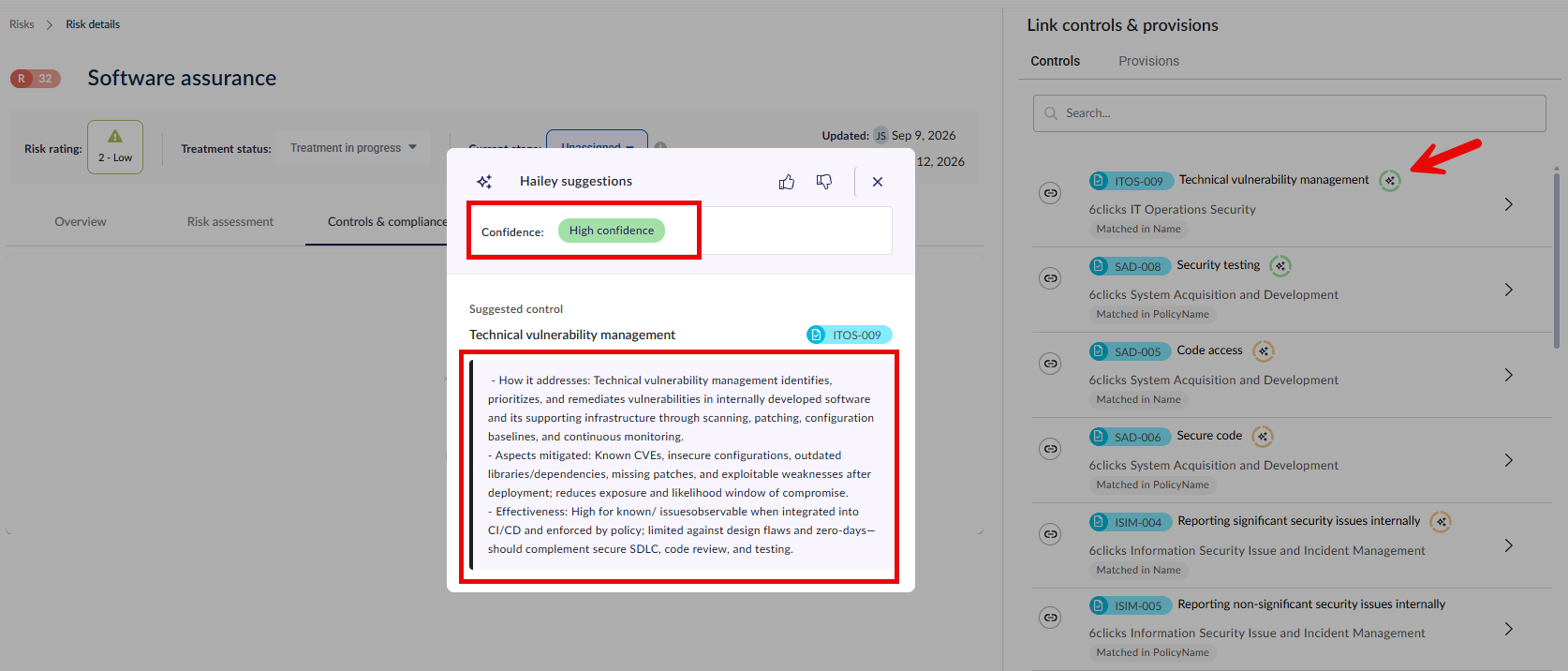
The explanation is generated when you open the panel, so it may take a moment to appear.
Confidence levels
Hovering over a suggested control and its sparkle icon shows one of three levels:
| Level | What it means |
|---|---|
| High confidence | The control closely matches the risk. Still worth a quick check, but usually a strong candidate. |
| Medium confidence | A reasonable match. Review the control before linking it. |
| Low confidence |
A possible match with weaker overlap. Review carefully; it may not be relevant. |
Confidence describes how closely the wording of the control matches the wording of your risk. It is not an assessment of whether the control is adequate, effective, or sufficient for compliance. This distinction matters and the judgment remains yours.
Search for a control
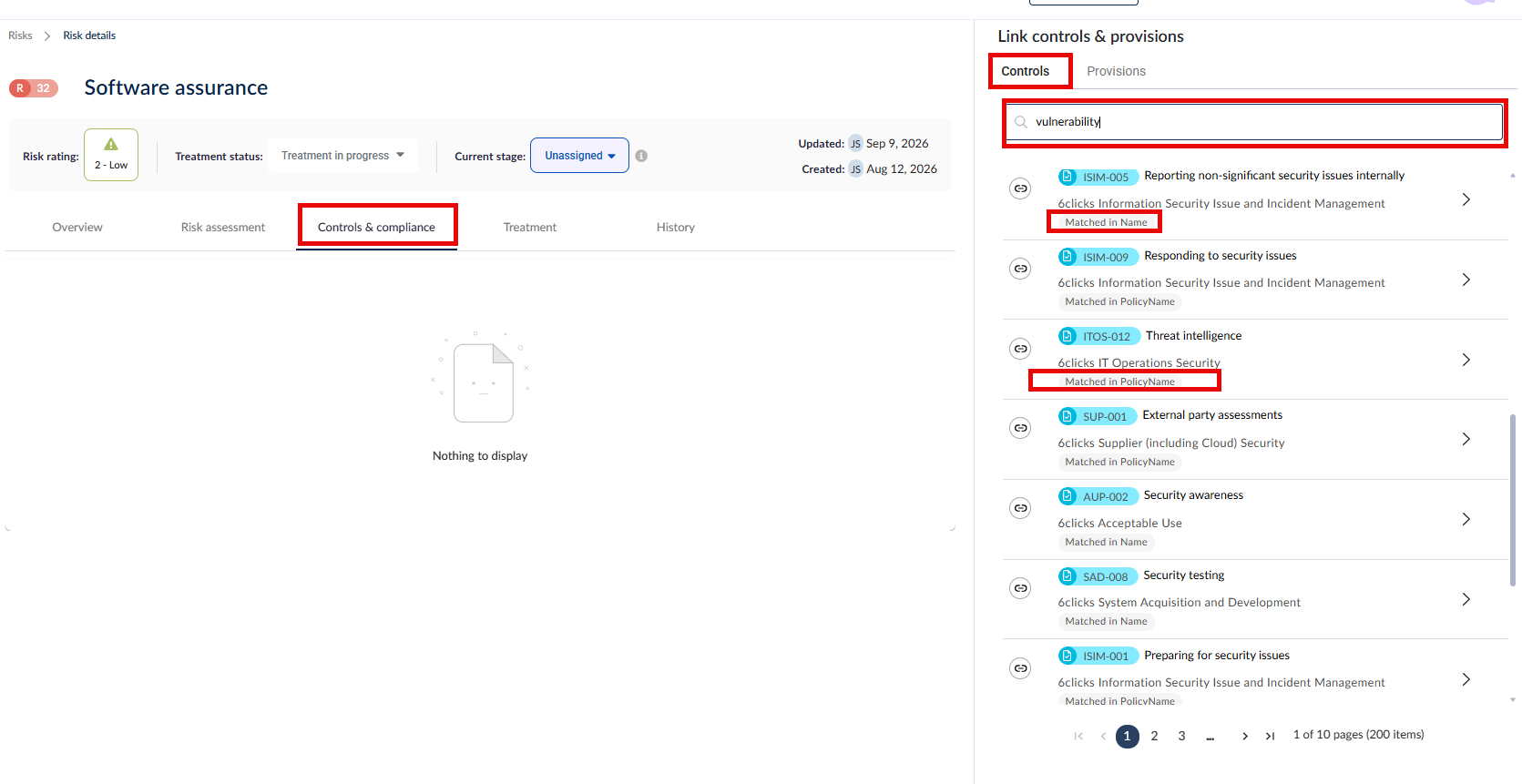
Use the search box at the top of the panel to describe the risk scenario in plain language and 6clicks will find the closest matches or matches. You do not need to match the exact wording of a control.
Results update shortly after you stop typing, so there is no need to press Enter.
Where a result matched on a particular field, a Matched in badge appears beneath it showing which field produced the match. This is useful when a result is not obviously related to what you typed.
Suggestions vs search
Suggestions and search are two different views of the same list.
- When the search box is empty, you see suggested controls, marked with sparkle icons
- When you type a search, you see search results for your query, and the sparkle icons are hidden
Clear the search box to return to suggestions.
Link controls to a risk
Select the link icon to the left of the control. Once linked, the icon turns dark. Select it again to unlink.
To open a control and read it in full before deciding, use the arrow on the right of the row.
Providing feedback on a suggestion
Open the Hailey suggestions panel from the sparkle icon and use the response icons to mark the suggestion as good or poor. This feedback helps improve future suggestions.