
You need administrator access to add content from the 6clicks open Content Library.
This article discusses adding content such as assessment templates, authority documents and more from the 6clicks open Content Library to your own exclusive Content Library, so that your Spokes/clients can access them when needed.
To learn more about the differences between the 6clicks open Content Library and your own exclusive Content Library, head here.
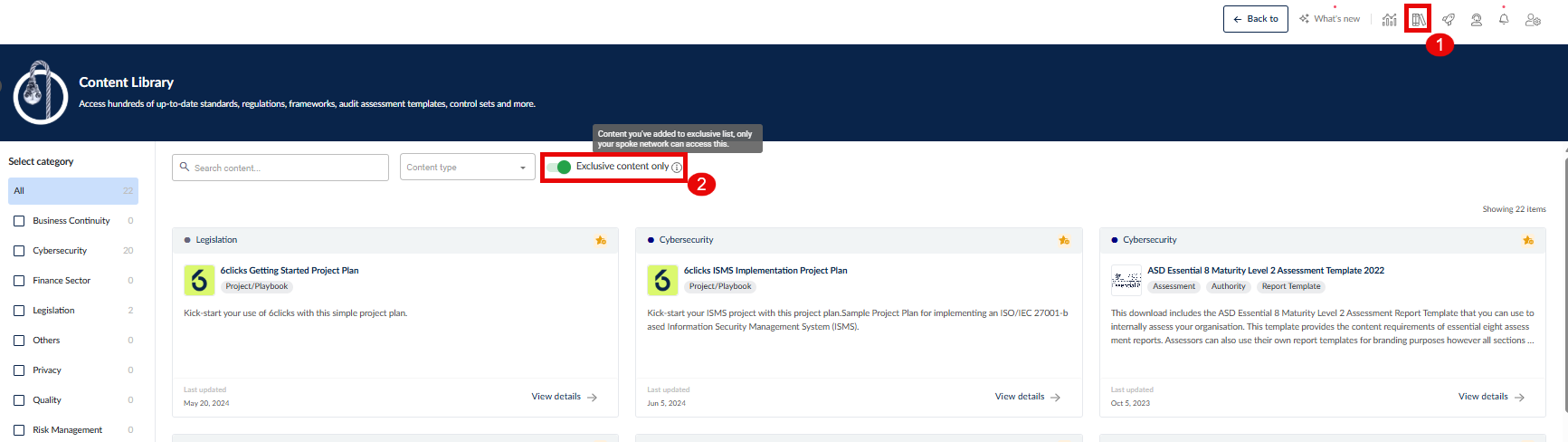
Go to the Content Library by clicking on the second icon in the top right (1) and select between:
- The 6clicks open Content Library: Exclusive Content Only (2) disabled

- Your exclusive Content Library displays only what you have shared for your clients and can be viewed by clicking or enabling Exclusive Content Only (2)
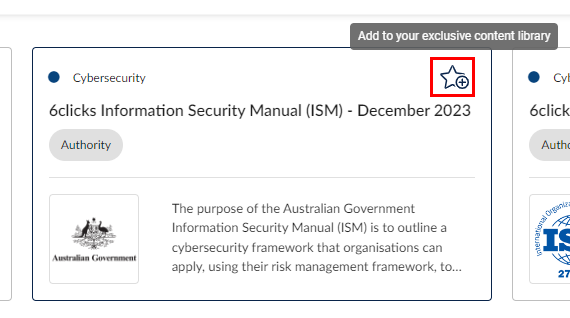
To add an item to your Exclusive Content Library from the 6clicks open Content Library, click on the star icon at the top-right corner of the item.
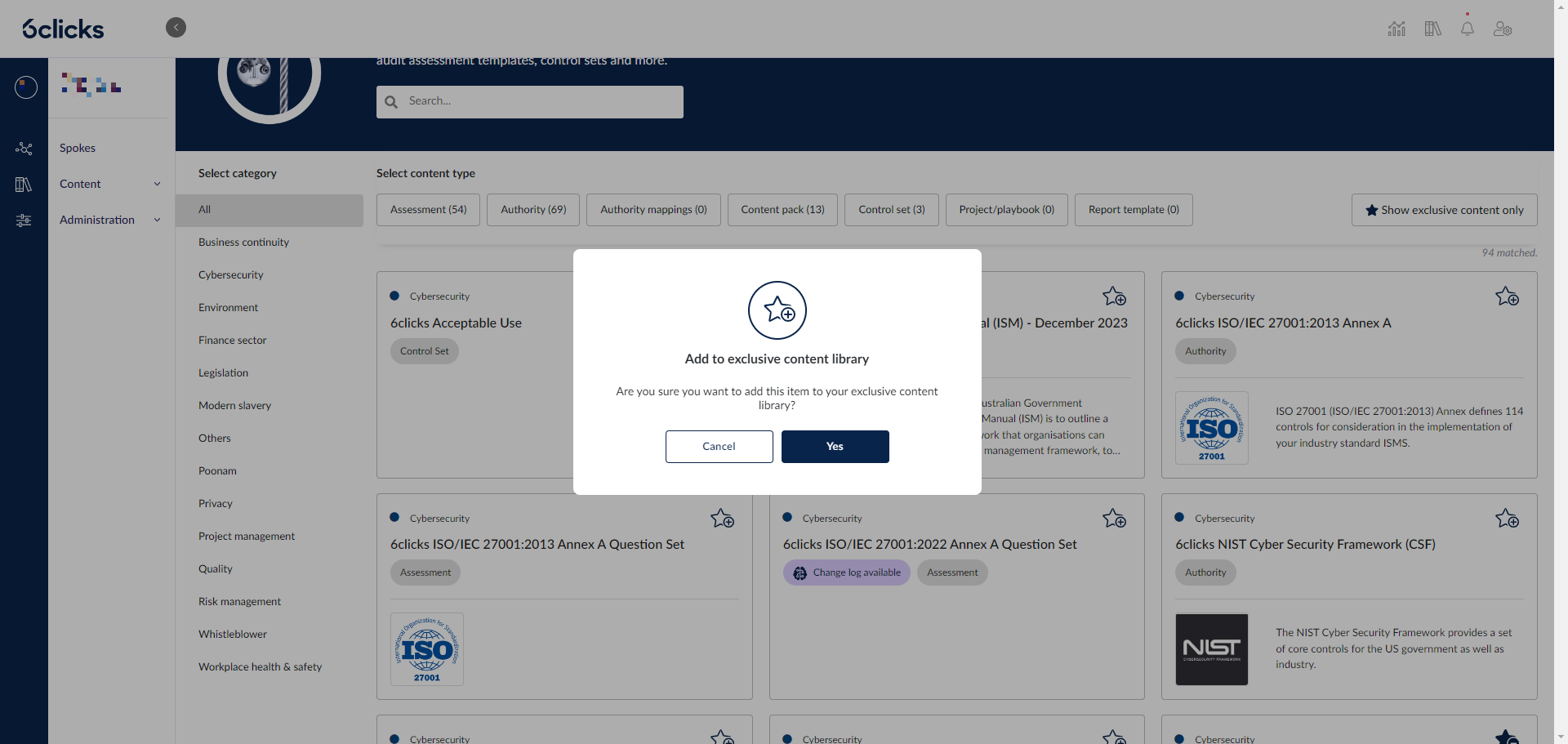
A confirmation prompt will appear. Click Yes to continue.
The item will then be listed under your exclusive content and will now be available to your clients.
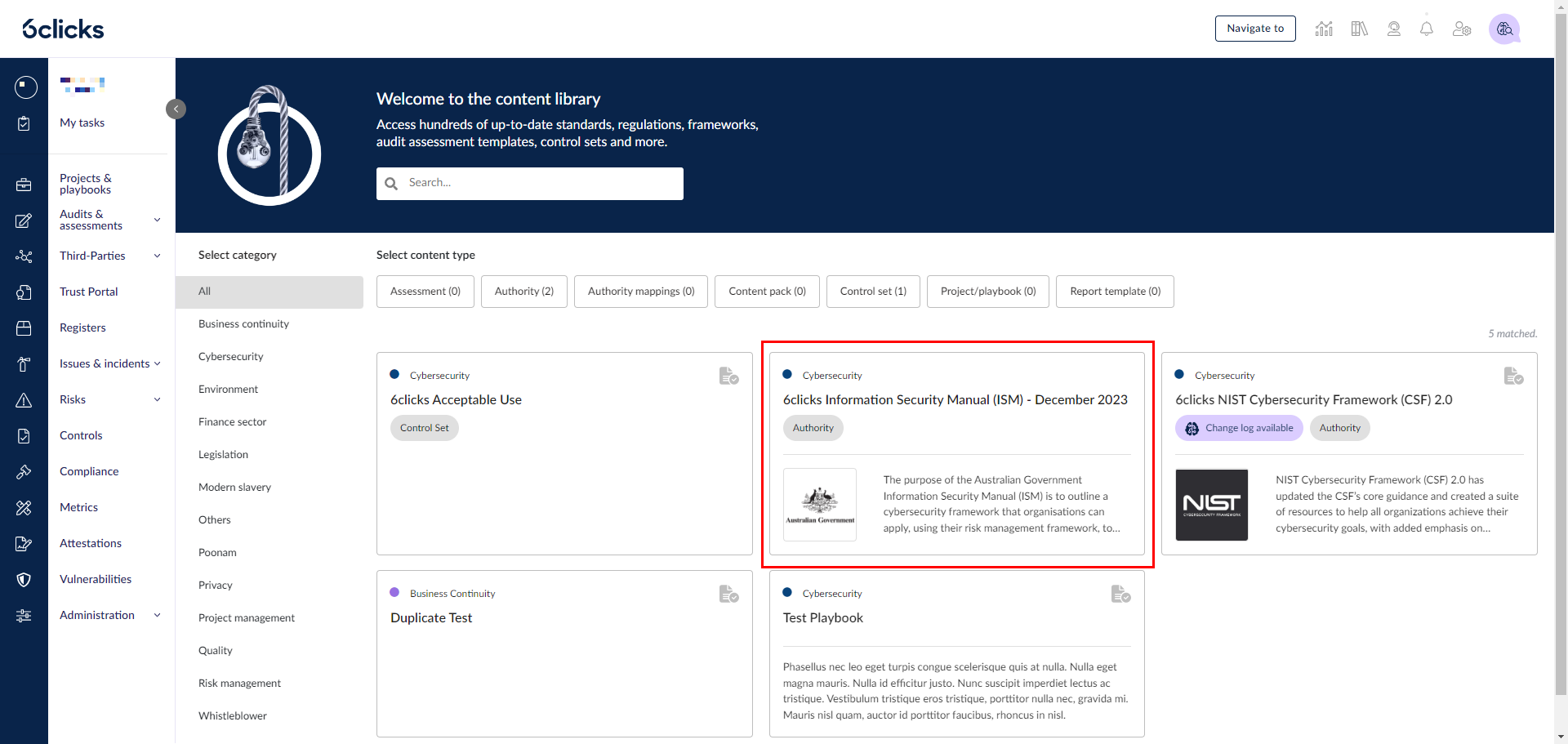
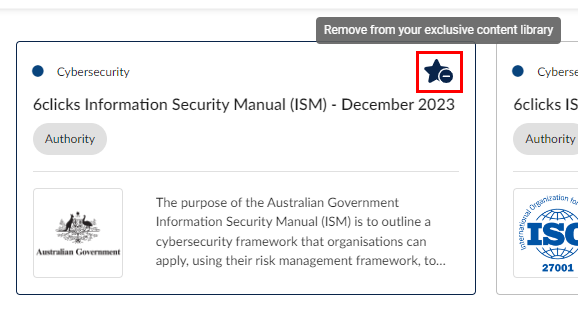
You can also remove the item from your Exclusive Content Library by clicking on the star icon again to deselect the item.
Your clients will only have access to your Exclusive Content Library and will not be able to view the 6clicks open Content Library.
Learn more about tailoring content for your clients using the Exclusive Content Library and about adding content from the 6clicks Content Library.
Learn more about the different types of content that you can define for your clients such as authorities, controls, and assessments.